4 Plans and billing
The Plans and billing page shows a Workspace’s plan and measured AI usage. It does not take payment or issue invoices.
Sophea currently manages plan changes. Portal provides usage information and account contact details, not self-service purchase or subscription controls.
Organization owners and Organization admins can open this page. A Workspace admin who is not also an Organization owner or Organization admin cannot manage Organization billing.
4.1 Open Plans and billing
- Open Organizations in Portal.
- Select the Organization.
- Select Plans and billing in the account navigation.
The page has four parts:
- Current plan state: the plan name and a contact option. Cards do not show prices or provide checkout. Select Contact billing to discuss a plan change with Sophea.
- Credit usage: measured model spend and the UTC reporting period, described below. Current plans have no credit allowance, and credit-budget enforcement is not enabled.
- Activity recorded this month: attribution of usage to members, Digital Employees, legacy entries and shared Workspace activity.
- Organisation details: legal and contact information. This is not an invoice or VAT-calculation screen.
A personal account that still holds Workspaces has the same page under Plans and billing in its own navigation.
4.2 Understand plans and credits
AI usage is reported in credits using the configured EUR model prices. Credits report model spend; they are not payment, subscription, or an invoice. The card’s month is a UTC reporting period, not a subscription renewal date.
| Card state | What it means |
|---|---|
| X credits used, no monthly limit | Portal has recorded spend for the current UTC month. This is the current plan setup: no credit allowance is set. |
| Not measured yet | No spend observation is recorded for the current UTC month. This does not mean the Workspace used no credits. |
| Monthly limit not set yet | Portal has not recorded a monthly limit for this reporting period. Current plans are unlimited, so this does not indicate an active cutoff. |
Renews on marks the first day of the next UTC month, the end of the reporting period. It is not a subscription renewal. Updated shows the last spend observation time. Recent requests may not appear immediately.
4.3 Read the credits card
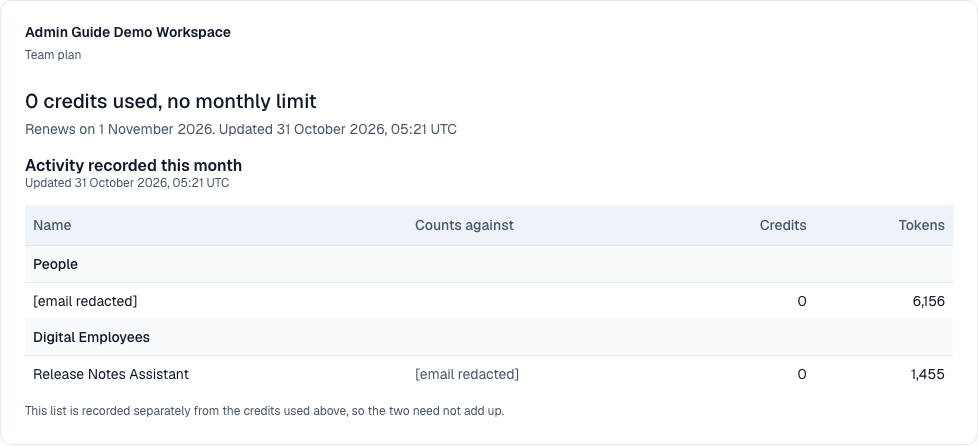
Each Workspace has its own card. It shows the plan, measured credits and the end of the reporting period.
4.4 Review usage by who used it
Under Activity recorded this month, the usage table lists what used the Workspace’s AI this month. Its columns are Name, Counts against, Credits, and Tokens. Within each group the rows are sorted by credits, highest first.
| Group | What it lists |
|---|---|
| People | Each person who chatted, searched, or used the CLI, by email. A person who is no longer a member shows as Former member. |
| Digital Employees | Each employee, by name. A deleted employee shows as Removed Digital Employee. If Portal cannot read the employee names, the rows show Digital Employee. |
| Automations | The AI work automation runs do on their own (decisions, answers, extracted fields, drafts and searches), each automation by name. A deleted automation shows as Removed automation. If Portal cannot read the automation names, the rows show Automation. Tasks an automation gives to a Digital Employee are listed under that employee. |
| Workspace | Shared work that no one person did, added up in one row named Workspace (search, preparing documents for search and other shared work). |
Counts against shows whose usage is recorded, not a separate allowance. A personal assistant’s and a personal automation’s usage is attributed to its owner; a Team employee’s and a Team automation’s usage is attributed to Workspace. There is no separate Team allowance: Team usage counts toward the Workspace’s credits.
4.5 Know why the table need not add up
The credit card and activity table use different data sources. Credits use LiteLLM spend measured with configured model prices; the table uses the Nous usage ledger. Their coverage and timing can differ, so the table does not reconcile to the card. Use it to understand attribution, not to calculate the credit total.
4.7 Current credit enforcement
All current plans have no credit allowance, and credit-budget enforcement is not enabled. The Portal cards report usage; a Workspace is not currently cut off from chat, Digital Employee work, CLI requests, or connector indexing when a credit amount is reached.
The code contains a conditional credit-exhaustion refusal path for a limited plan. It is not current user-facing behavior. Only an approved decision and enabled enforcement would make a credit cutoff or its refusal message applicable. In that case connector indexing would pause instead of failing, and the Portal connector list would show the connector as Paused, with the date indexing resumes when it is known.
4.8 Maintain organisation details
The Organisation details card stores the account’s legal and contact details. It is not an invoice or VAT-calculation screen:
- Legal name
- Trade name
- Billing email
- Country
- VAT number
- Language
- Address
Select Edit to change them. The form adds Address line 1, Address line 2, City, Region, and Postal code. Select Save details to keep your changes, or Cancel to leave without saving. Keep the legal name, country, VAT number, and address aligned with the legal entity of the Organization.
When Nous answers questions about invoices in your documents, it uses the legal name, the trade name, and a validated VAT number to help tell your income from your expenses.
4.9 Troubleshoot access to Plans and billing
If Plans and billing is unavailable:
- Confirm that you opened the correct Organization.
- Confirm that your Organization role is owner or admin. A direct Workspace Admin role is not sufficient.
- Ask an Organization owner to update your Organization role if you need access to this page.
If the plan shown for a Workspace or its usage information looks wrong, use Contact billing to reach the Sophea team. Do not create another Workspace to work around a plan or usage display issue.