28 Agents
Agents give your users a prepared assistant instead of a blank chat. Two kinds are available, and you need to keep them separate in your head:
- The default assistant answers every chat that does not use another agent. A workspace admin sets its instructions and tools in Settings > Chat Preferences. See Chat Preferences and Actions and tools.
- Published Sophea agents ship inside the platform. Presentation Agent, Financial Agent, Web Search, Deep Research, and others are available here. Your Portal administrator chooses which Sophea-published agents are available in your workspace via the
external_agentsfeature. You do not build these inside Nous.
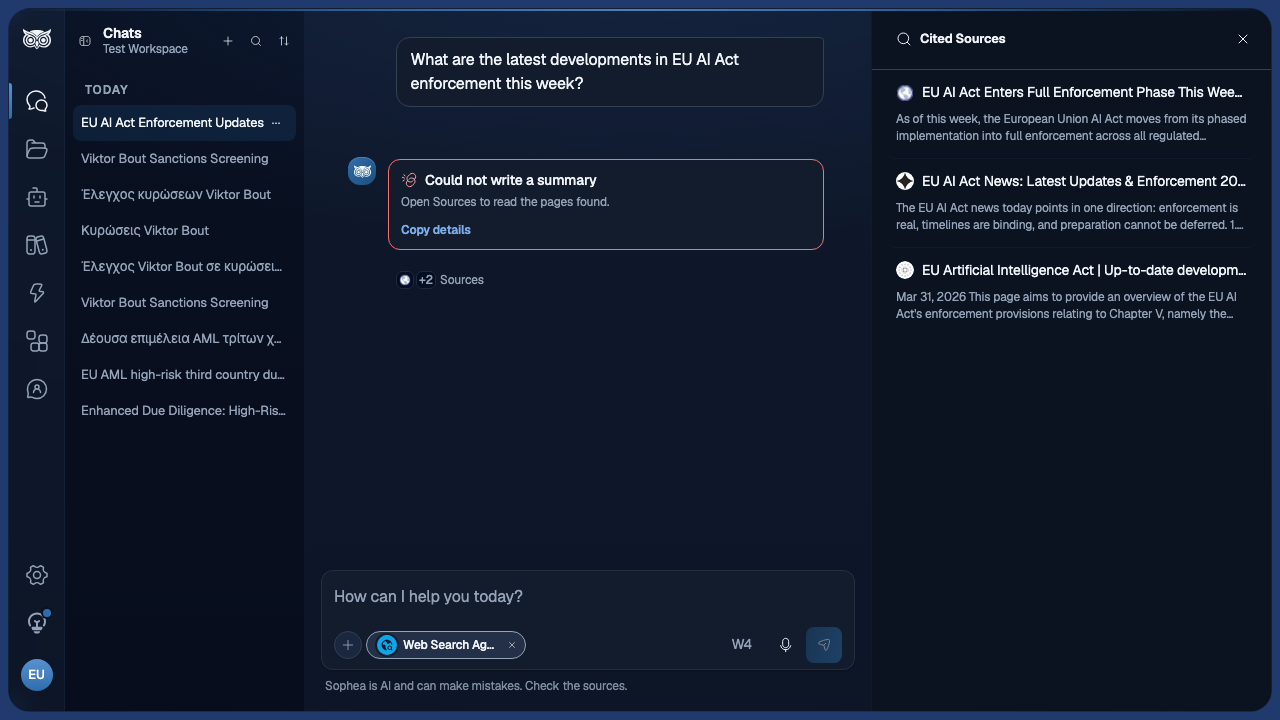
Agent answers show the web pages and official sources they used the same way as any other answer: select Sources under the answer to open the Cited Sources panel. This applies to Web Search, Deep Research, Greek Legal, Financial, Procurement, Public Tenders, and Presentation research. Copy on a Web Search answer still copies the full answer with its list of sources.
If an agent cannot write its answer, for example because the AI service is unavailable, the chat shows a short notice in place of the answer instead of partial or raw results, with Retry when trying again later can help. When Web Search found pages but could not write the summary, the notice says so and Sources still opens the pages it found. If some steps failed but the answer could still be produced, such as a screening built from the results of its checks, the answer is kept and a notice above it says that not every step finished; regenerate it for a complete answer.
If you only need ad-hoc exploration, plain workspace chat is enough. When the same people repeat a task with the same context, use a Project, which carries its own instructions and files into every chat.
In the chat composer, the Agents control opens a menu with a search box and the published agents of the workspace. Pick up to four agents; a message can use up to four agents. The control reads Agents when nothing is selected. With a selection it shows the agent’s avatar and name when one agent is selected, and the first two avatars and “N agents” when several are (hover it to see their names). Its x turns off every agent picked in this menu at once; it does not turn off Deep Research, which has its own control next to + (see Deep Research) and counts toward the four-agent limit. Browse all agents at the bottom of the menu opens the Agents page. A selected agent stays selected for subsequent messages in the same chat, including when a run continues in the background. Turn an agent off in the menu, or use the control’s x to turn them all off, when you no longer want to use them. Switching chat or project context can clear the selection. When you start a chat with a published agent from the Agents page, the chat opens with that agent already selected; switch, add or turn it off like any other selection. Each reply names the agent that answered it on its activity line, for example “Asked Financial Agent”.
For ordinary-chat preparation and completed-response measurements, see answer timings. Published-agent activity summaries, including the Deep Research steps, have their own scope; they are not pure model-thinking time or HTTP request duration.
28.1 Temporary workspace connection
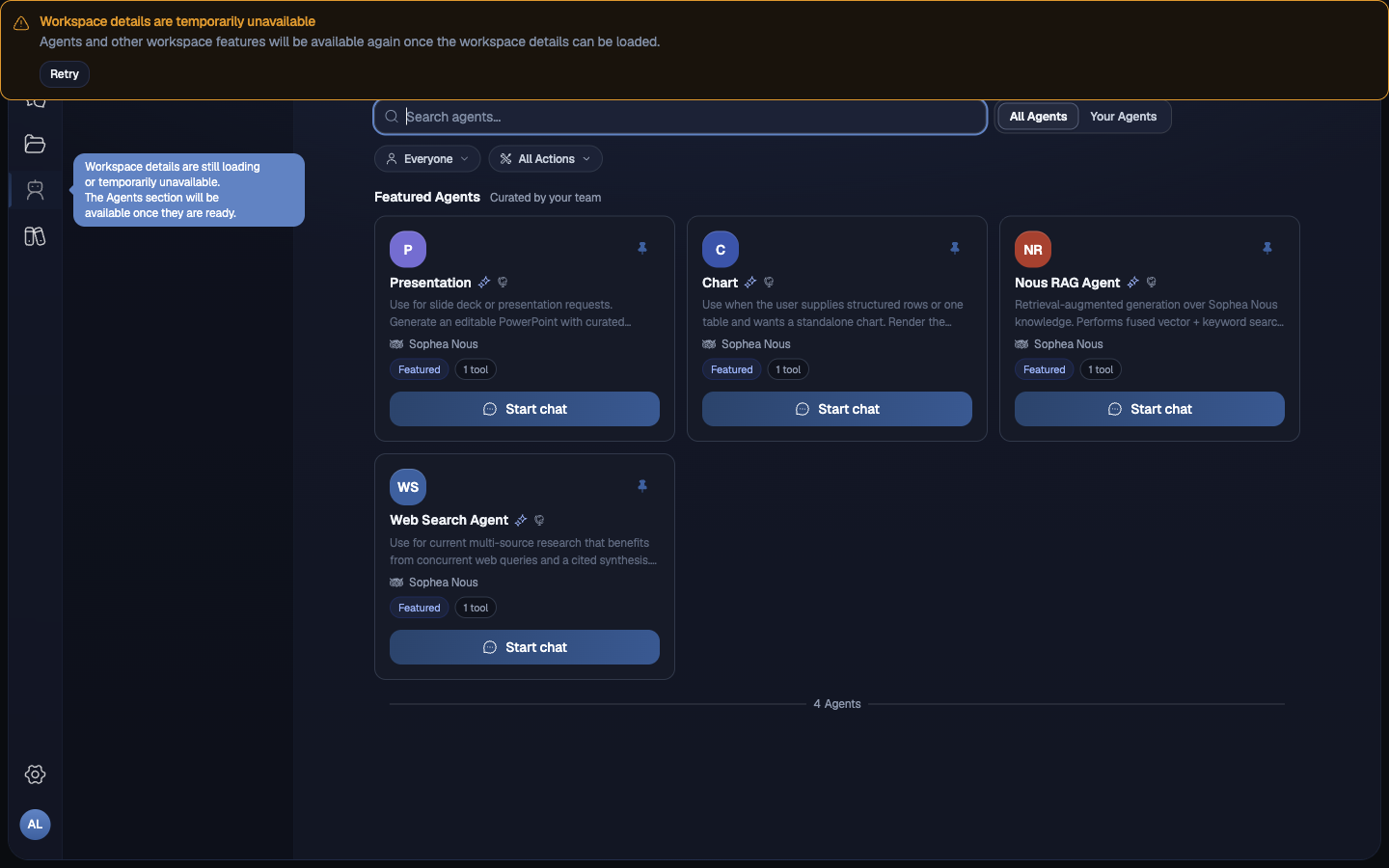
If workspace details are temporarily unavailable, the Agents shortcut stays visible but cannot be selected. Your current page and chat stay open. Wait for the connection to recover, or select Retry in the workspace-details message.
This is different from Agents being disabled for the workspace. When Agents is disabled, its sidebar shortcut is hidden.
28.2 Projects
Projects let users group related chats under a shared set of instructions and context files. Instead of starting every conversation from scratch, a project carries its own instructions and uploaded files into every chat opened under it.
Click the Projects icon in the main left sidebar to open the projects panel. Click the icon again to hide the panel, or point at the panel’s edge and click the arrow that appears. Once the panel is hidden, the same arrow on the sidebar edge brings it back. Once you have five or more projects, the panel header also offers search, and sorting and filtering by owner.
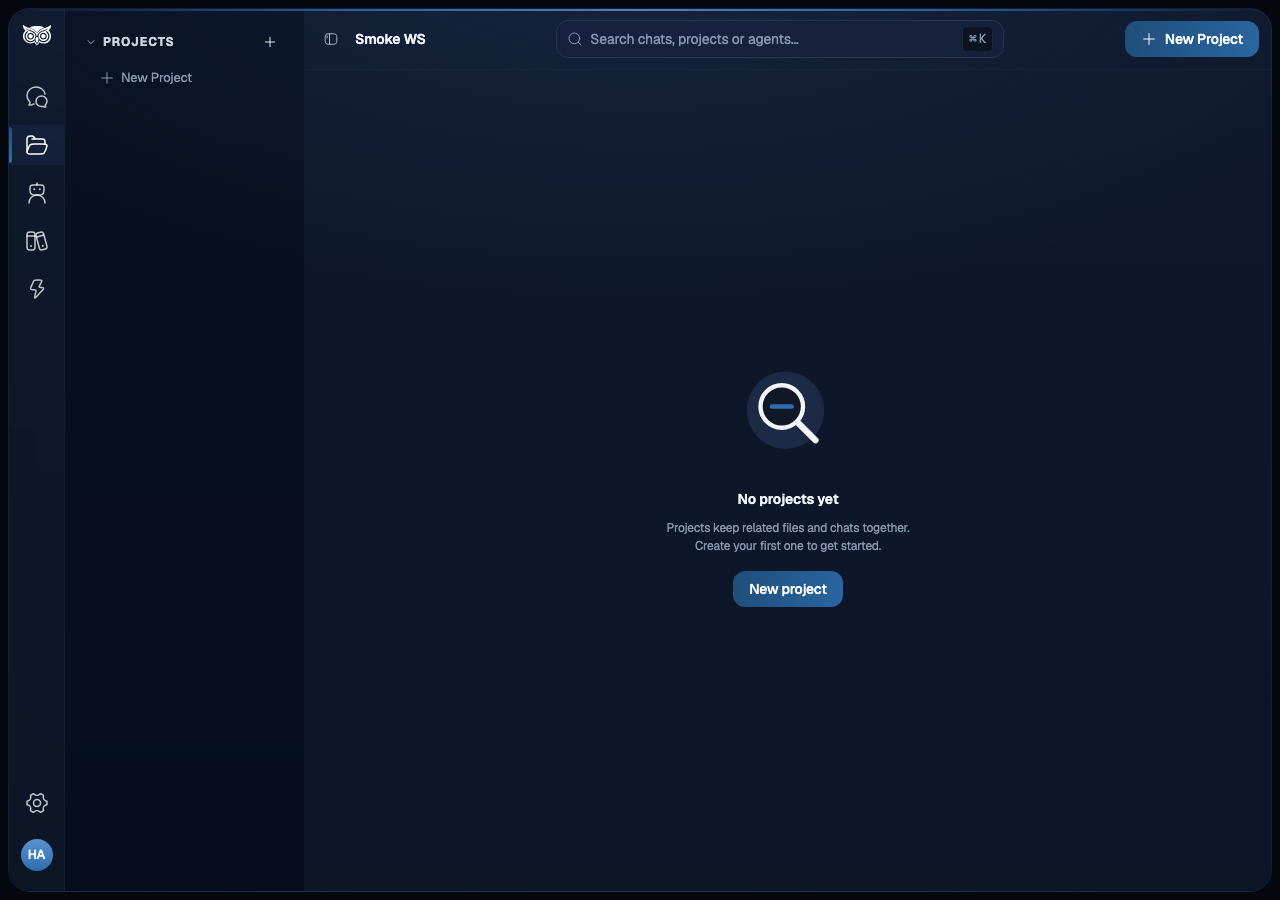
To create a project:
- Click the + button (New project) in the projects panel header.
- Give the project a name.
- Add shared instructions in the instructions field. These apply to every chat opened inside the project.
- Upload any context files the project should always have available.
- Save.
Once a project exists, open a new chat from inside it. All chats in that project inherit its instructions and files automatically.
Use projects when a team member regularly works in the same context, for example a standing client engagement, a recurring research topic, or an ongoing audit. Projects reduce the overhead of re-establishing context at the start of every session.
28.2.1 Project Team-share notifications
When a Project is shared with a Portal Team, Nous sends an email and adds one in-app Team-share notification for each active Team member who newly gains access to that Project. The recipient is the Team member, not the person who shared it. A member who already has access directly or through another active Team receives no duplicate. The actor, workspace admins who already have access, inactive Team members, and users in another tenant are not recipients.
Find the in-app inbox by clicking your sidebar avatar and choosing Notifications. The avatar badge and the Notifications row show the unread Team-share count. Opening the inbox refreshes access but never dismisses a row. Click Dismiss notification to clear unread state; the row remains in history and the dismissal persists across refreshes and sign-in.
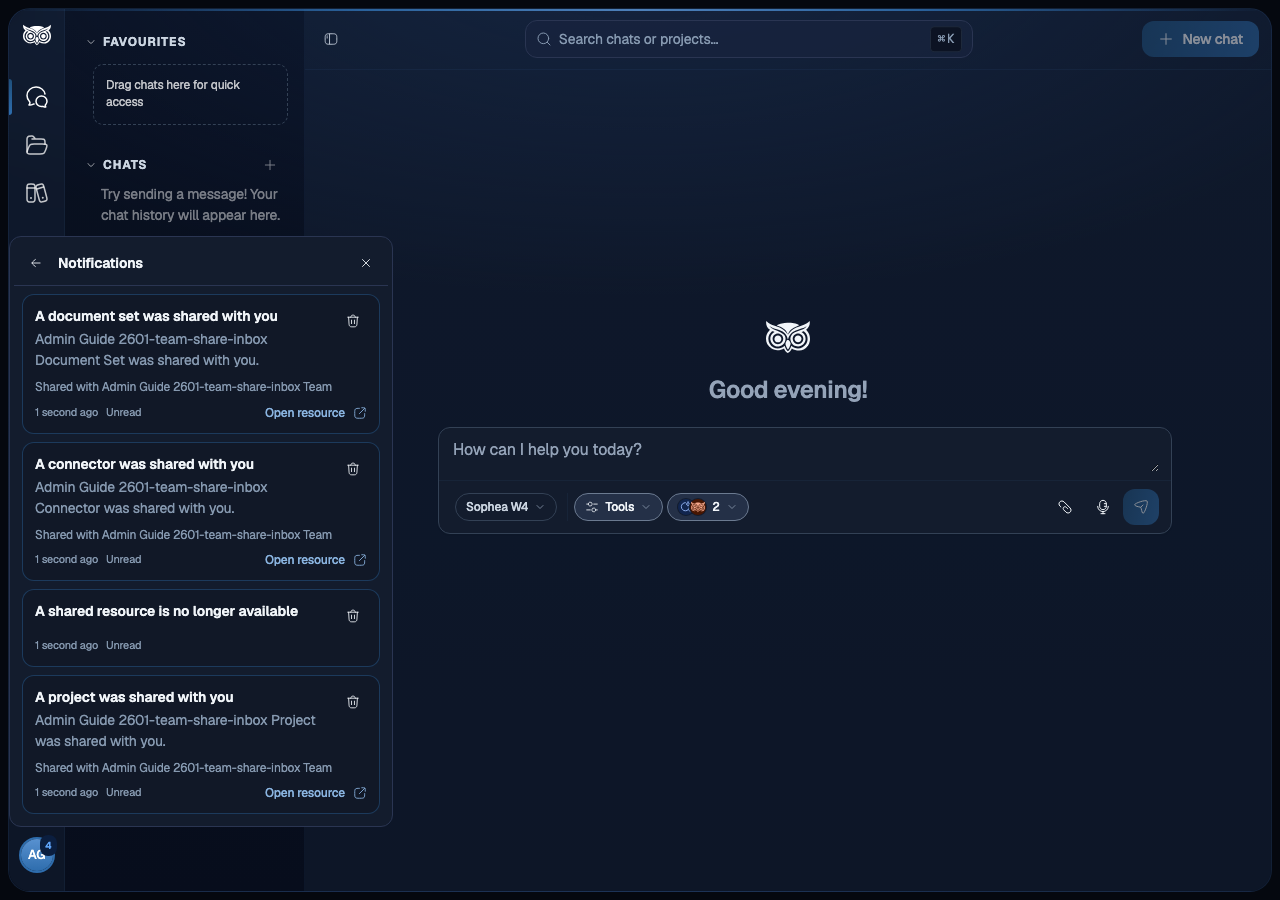
The inbox covers Team-share events for Projects and private Connectors. An accessible Project row shows its link, the Team names associated with the share, and received time. Retrying one Team-share mutation is deduplicated. Removing a Team and sharing the Project with it again creates a new grant and a new event. If a Project or its access is revoked, the old row remains but a fresh open-time check removes the Project name, file details, Team names, and link. It shows only safe unavailable wording. A later regrant creates a new event and does not restore details in the old row.
Project sharing grants access only to that Project. The notification and email report that grant; they do not extend access to other Projects or connectors.
28.3 Chart and Presentation artifacts
When an enabled published agent creates a chart or presentation, Nous shows the result as an artifact card in the chat instead of placing the artifact JSON in the answer. Chart cards include a safe PNG preview and downloads for the JSON, SVG, and PNG files. Presentation cards include best-effort slide thumbnails and downloads for the PowerPoint and PDF files when those formats are available.
Artifact links are authenticated to the current workspace and remain available for 30 days. If a link has expired, ask Sophea to generate the chart or presentation again. SVG files are downloaded as attachments; they are not displayed as executable markup in the chat.
Chart and Presentation are published by default for workspaces that inherit the platform agent policy. The assistant automatically uses them for clear chart or deck creation requests in English or Greek, but neither is mandatory and neither appears as a selected composer step. Explicitly selected tools keep precedence. Chart plots the values the user gives, whether in a table, a list, or a sentence, and charts only the rows Sophea passes to it. Presentation can call Chart internally when complete rows are available. When a deck request explicitly asks for current research, Presentation can also call Web Search internally and only charts rows that are verified against cited source evidence. Presentation also generates pictures for up to four slides where a picture helps the story. If a picture cannot be generated in time, that slide keeps its decorative design and the rest of the deck is unaffected. They are always on in chat: the composer has no switch for either one, and they are not listed on the Agents page. A Portal administrator can still disable either agent globally or for a workspace.
An immediate follow-up such as “create a presentation about it” or “use that chart in a deck” reuses the exact Chart result from the preceding turn in the same conversation branch. Presentation preserves the source rows and chart visual rather than asking the model to reconstruct them. If the preceding chart is missing, ambiguous, expired, altered, or belongs to another workspace, Sophea asks the user to create or provide the chart again and does not generate a deck from unverified data. If secure storage cannot distinguish a missing chart from a temporary access problem, Sophea instead asks the user to try again.
28.4 Greek Legal and attached documents
When a user selects the Greek Legal agent, it reads the documents available in that chat: files attached to the current or earlier messages, and the files of the chat’s project. Nothing else is shared with it, and a user only ever reaches files they can already open in that chat.
- Questions about what a document says (“What does the attached contract say about the notice period?”) are answered with the document’s own words: the passages that answer, quoted word for word with the answering words in bold and the clause or section named, under a note that this shows what the document says and is not a legal assessment. The same quotes appear under From your documents in the result card. These quotes are kept separate from legal sources and are never presented as legislation.
- Legal questions about a document (“Is clause 7 lawful?”, “Review this contract”) also need legal sources. If no suitable legal source supports a conclusion, the agent says so and still shows the relevant document quotes.
- Long documents are read in sections. When the agent did not read every section, or a file was too large or could not be read, the answer says which parts were reviewed, for example “Reviewed 12 of 87 sections of «Contract.pdf»; the rest was not read.” Ask about a specific clause or topic to get it read.
- Files that are still being processed, or could not be read, are named in the answer instead of the agent asking for them again.
28.5 Deep Research
Deep Research is a published Sophea agent. Users turn it on from the composer’s + menu. A highlighted icon next to + shows that it is on; select the icon to turn it off. Deep Research can run together with agents picked in the Agents menu, and it stays on for follow-up messages in the same chat until it is turned off. Your Portal administrator makes it available to the workspace with the other published agents; it has no setting in Chat Preferences.
Deep Research answers a research question with one cited report. It searches the workspace documents the person can already open and the web. Each source in the report is shown as a workspace document or a web page. In a project chat it searches only that project’s documents, plus the web. A source filter set in the composer narrows the workspace documents it searches.
Deep Research does not ask clarifying questions. The first line of the report states the scope it assumed, and the user can ask a follow-up to change it. While it works, the chat shows its steps, such as searching the workspace, searching the web and writing the report. The report itself appears when it is finished, not as it is written. A run takes a few minutes and uses considerably more AI usage than an ordinary answer.
In a shared chat, only the person who ran Deep Research can see its report, as with other agent runs.
A run keeps going on the server when the user refreshes the page, navigates away, closes the tab, or loses the network. Reopening the chat shows its steps and then the final report with its sources.
Only the Stop control cancels a run. A cancelled run stays cancelled and is still shown as cancelled after a refresh, so users can tell a deliberate stop apart from a connection that dropped.
Chats that used the earlier built-in Deep Research keep their saved reports and sources.