30 Search Verification and Troubleshooting
Two inspection tools let you verify what was actually indexed and which documents users find useful: the Document Explorer and the Document Feedback page. Both are available to workspace admins by URL and require no platform-admin access.
30.1 Document Explorer
The Document Explorer at /app/admin/documents/explorer lets you search the indexed corpus directly, without going through a chat. Use it to confirm that a specific document was indexed and to see how it is filtered by source and time. Any workspace admin can open it at its URL.
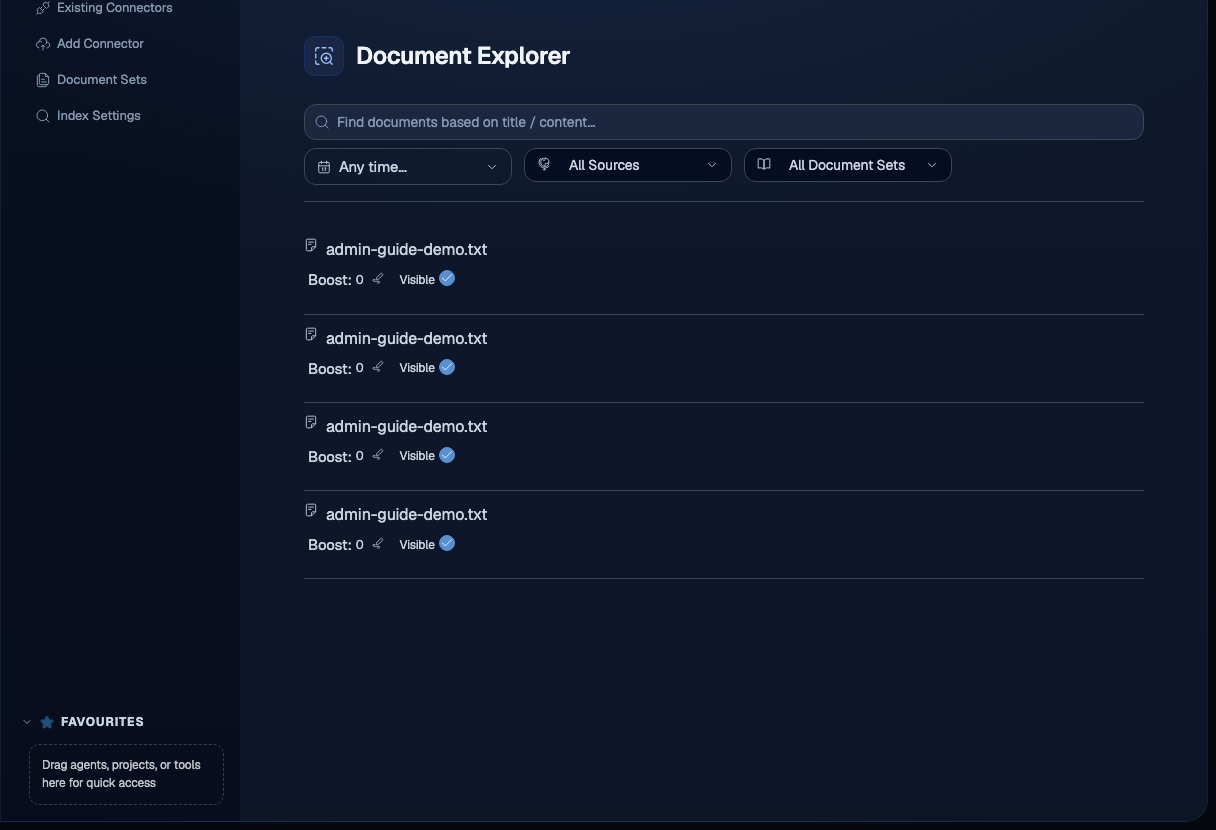
To inspect the index:
- Navigate to
/app/admin/documents/explorer. - Type a title or content fragment into the Find documents based on title / content field.
- Narrow the results with the filters above the field:
- Any time scopes results by indexing or document date.
- All Sources scopes results to one or more connector sources.
Each result row shows the document and whether it is currently searchable. If an expected document is missing here, it was never indexed: check the connector on the Connectors page.
30.2 Document Feedback
The Document Feedback page at /app/admin/documents/feedback ranks documents by the thumbs-up and thumbs-down votes users give to answers that cite them. It is a workspace-admin view of which sources are helping and which are hurting answer quality.
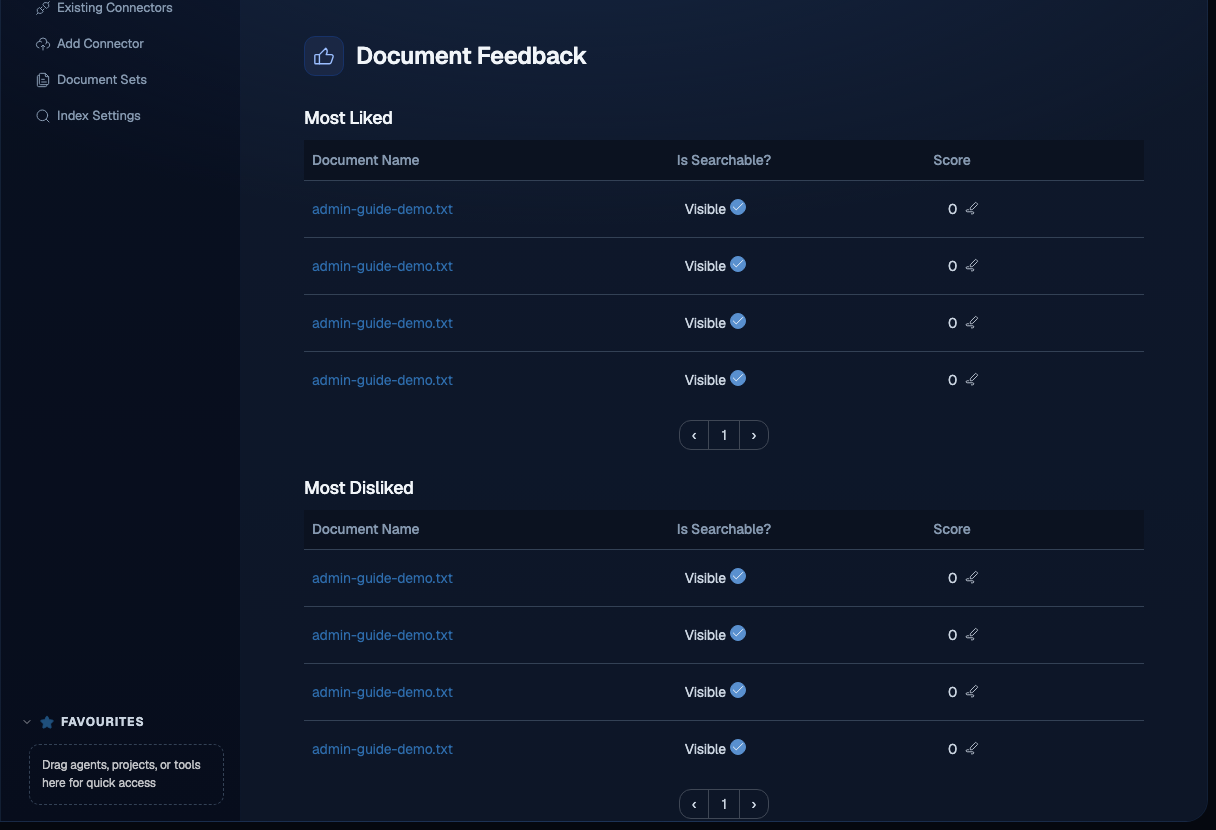
The page has two tables:
- Most Liked: documents whose citations received the most positive feedback.
- Most Disliked: documents whose citations received the most negative feedback.
Both tables share the same columns:
- Document Name: the indexed document, linked to its source.
- Is Searchable?: whether the document is currently retrievable (Visible) or has been hidden from search.
- Score: the net feedback score for that document.
Use the Is Searchable? control to hide a document that consistently produces poor answers without deleting it from the connector. A hidden document stays indexed but is excluded from retrieval, so you can reverse the decision later.
30.3 Troubleshooting search quality
Use this sequence when search results look wrong:
- Confirm the connector finished indexing: Connectors.
- Use the Document Explorer to confirm the specific document is actually in the index and is marked searchable.
- Check Document Feedback for documents that users have flagged, and hide any that consistently degrade answers.
Most search complaints resolve at step 1 or step 3.