33 Digital Employees
Digital Employees provide personal or team assistance in one Workspace. Each has its own instructions, a sandbox for commands and files, and optional connectors. Managers configure them in Portal. People who can use them may chat with them, assign tasks, and set up repeating tasks in Nous.
Digital Employees are in design and have no release date. The steps below describe the implementation when enabled, not a release announcement.
33.1 Open Digital Employees
For an Organization Workspace in Portal:
- Open the Organization.
- Select Digital Employees in the account navigation.
- Find an active Workspace where the product is Enabled.
- Click Open.
You can also open a Workspace from its row on the account Overview, or under Shared with me for workspace-only access, and select Digital Employees in the Workspace navigation. Controls remain unavailable until Workspace setup finishes and the product is enabled.
In a one-workspace Organization, Digital Employees lives only inside the Workspace: open the Workspace and select Digital Employees in its sidebar. The Organization sidebar has no Digital Employees entry, and the Organization address for it opens the Workspace page.
In Nous, select Digital Employees from the main navigation to see the employees you can use in the current Workspace.
33.2 Know what each role can do
| Role | Portal management | Nous |
|---|---|---|
| Organization owner or Organization admin | Can manage the employees they could use themselves, through their effective Workspace authority | Can chat with and assign tasks to the employees they can use |
| Workspace admin | Can hire, edit, pause, resume, and delete the employees they could use themselves, and manage their secrets | Can chat with and assign tasks to the employees they can use |
| Workspace collaborator | Read-only employee list | Can chat with and assign tasks to the employees they can use, and create and manage their own personal assistant when the Workspace allows it |
Every employee has one of two modes. Admins hire team members in Portal; people create their own personal assistant in Nous. The mode cannot change afterwards.
| Personal assistant | Team member | |
|---|---|---|
| Who can use it | Only the person who created it, its owner, whatever their role | Every member of one Team, while the Team has Workspace access |
| What it can connect to | The owner’s own connections, including live ones such as GitHub or ClickUp, and the sources the owner can search | Only sources shared with its Team. Personal live connections are not available |
| What is shared | Nothing, unless the owner asks it in a channel. Its chats and tasks are visible only to the owner | Each person’s chats stay private. The task board is shared with the Team, and its task results post there |
| Changes in connected apps | Wait for the owner’s approval | Wait for approval from the person who asked, or in a task from a manager when that person is away |
Personal live connections are for personal assistants only. A connection that signs in with one person’s own account stays private to that person, so a team member cannot use it.
A manager can hire a team member only into a Team they belong to, and manages only employees they could use themselves. Managing an employee does not grant extra access to documents. When an employee searches a connector, the results are limited to what the person it is working for can see.
Revoking a Team’s Workspace grant denies access to its team members but does not change their lifecycle. Regranting the Team’s Workspace access restores it. Portal blocks Team deletion until every attached Digital Employee is deleted.
The management table lists each employee with its Team, Connected apps (the number of selected connectors), and Status, and the row actions. The employee’s description appears under its name, and a badge shows its mode, Personal assistant or Team member. If Portal cannot read the employee list, for example during a service interruption, the page says This list could not be read and keeps Hire a Digital Employee available. Refresh to try again.
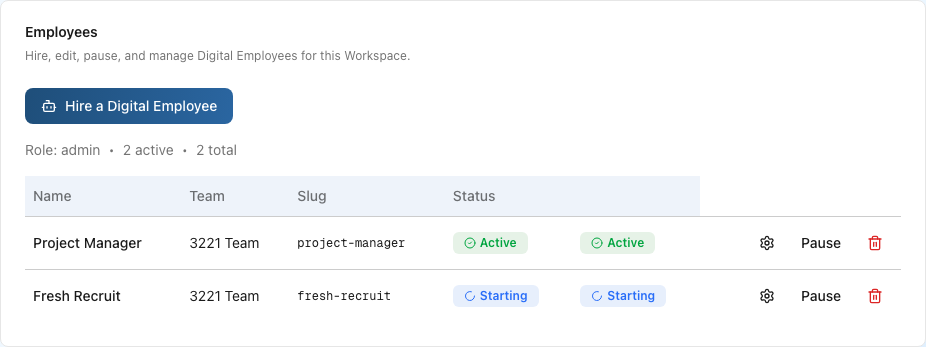

33.3 Create an employee
On the Workspace’s Digital Employees page in Portal, use Hire a Digital Employee and complete three steps:
- Access: select one of your Teams with current Workspace access. Every member of that Team can use the employee. Personal assistants are not hired here: people create their own in Nous (see Personal assistants). If none of your Teams has Workspace access, the page says so; add a Team first.
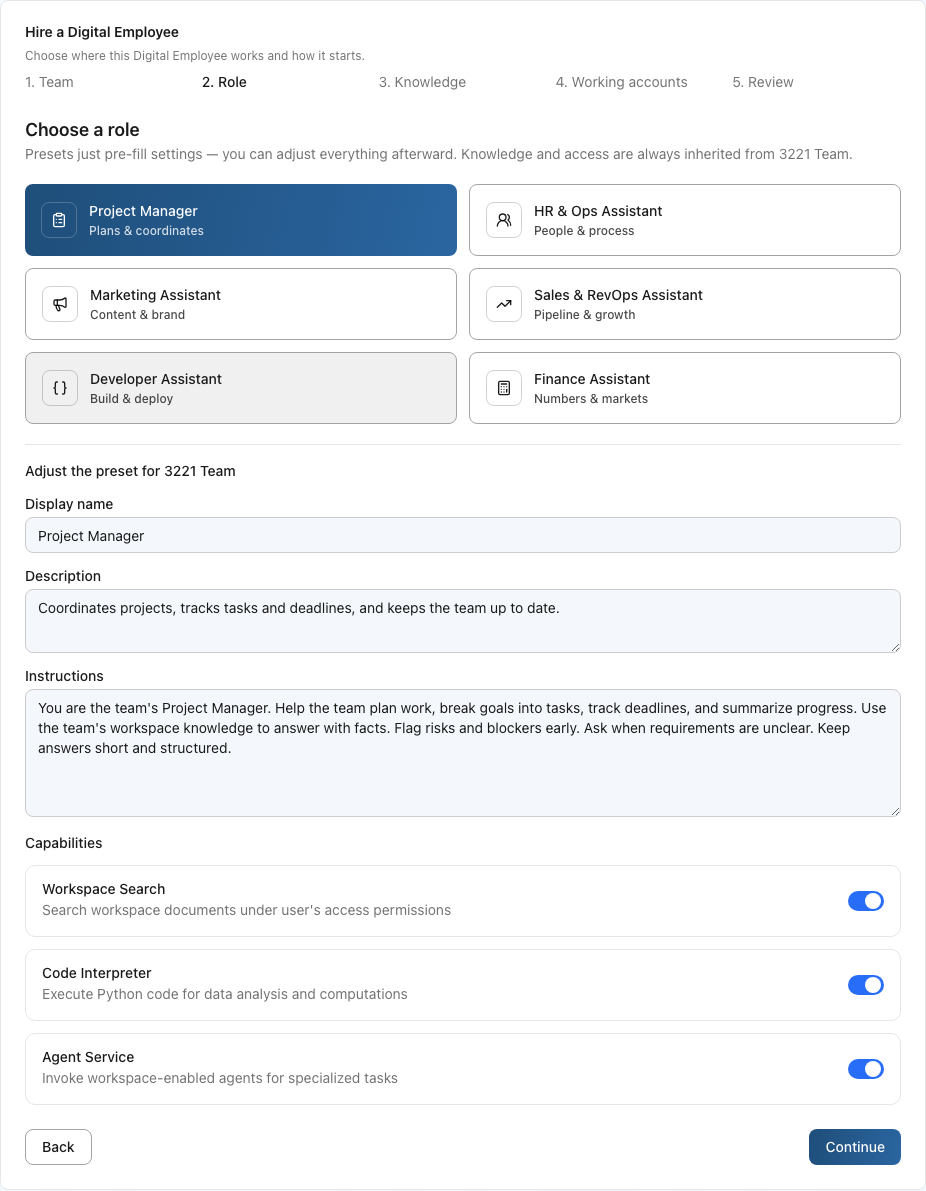
- Role & sources: choose a starting role and edit the employee’s name, description, and instructions. Counters under the description and instructions show how many characters of each limit you have used. Select connectors for it. Connectors are optional. Unavailable connectors are disabled with a reason. Use the connector-management link in a new tab to create or reconnect one, then choose Refresh connectors.
- Review: check the Team, starting role, and selected connectors. Select Start paused if the employee should take no chats or tasks until you resume it.
In a one-workspace Organization the hire page opens inside the Workspace and shows the Workspace name as text, because there is nothing to choose. In an Organization with several Workspaces, the hire page also asks which Workspace the employee belongs to.
The Team cannot change after hiring. The starting role supplies the initial persona and stays visible on the settings page as the role chosen at hiring. After hiring, settings can change the name, description, instructions, and connectors. Changes apply right away, including to work already in progress. Each person gets their own secure workspace with the employee for scripts and files.
33.4 Personal assistants
A personal assistant works for one person, with that person’s own connections, and only its owner can see and use it. People create their own in Nous, one each.
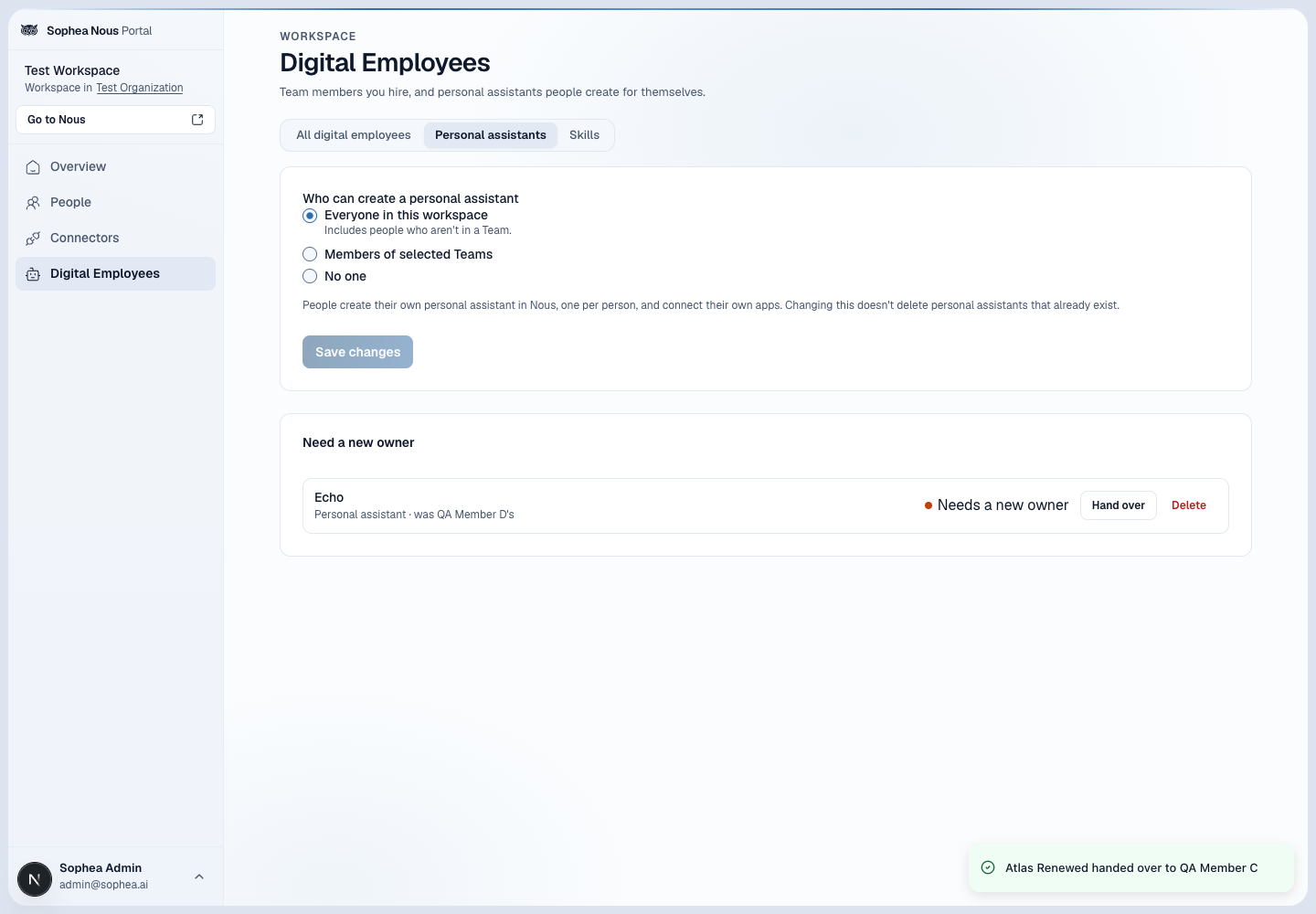
Who can create one. On the Workspace’s Digital Employees page in Portal, open Personal assistants and choose under Who can create a personal assistant:
- Everyone in this workspace, the default. It includes people who aren’t in a Team.
- Members of selected Teams, then tick the Teams. A person in several Teams can create one if any selected Team includes them.
- No one.
Select Save changes. Changing the setting does not delete personal assistants that already exist; their owners keep using and managing them.
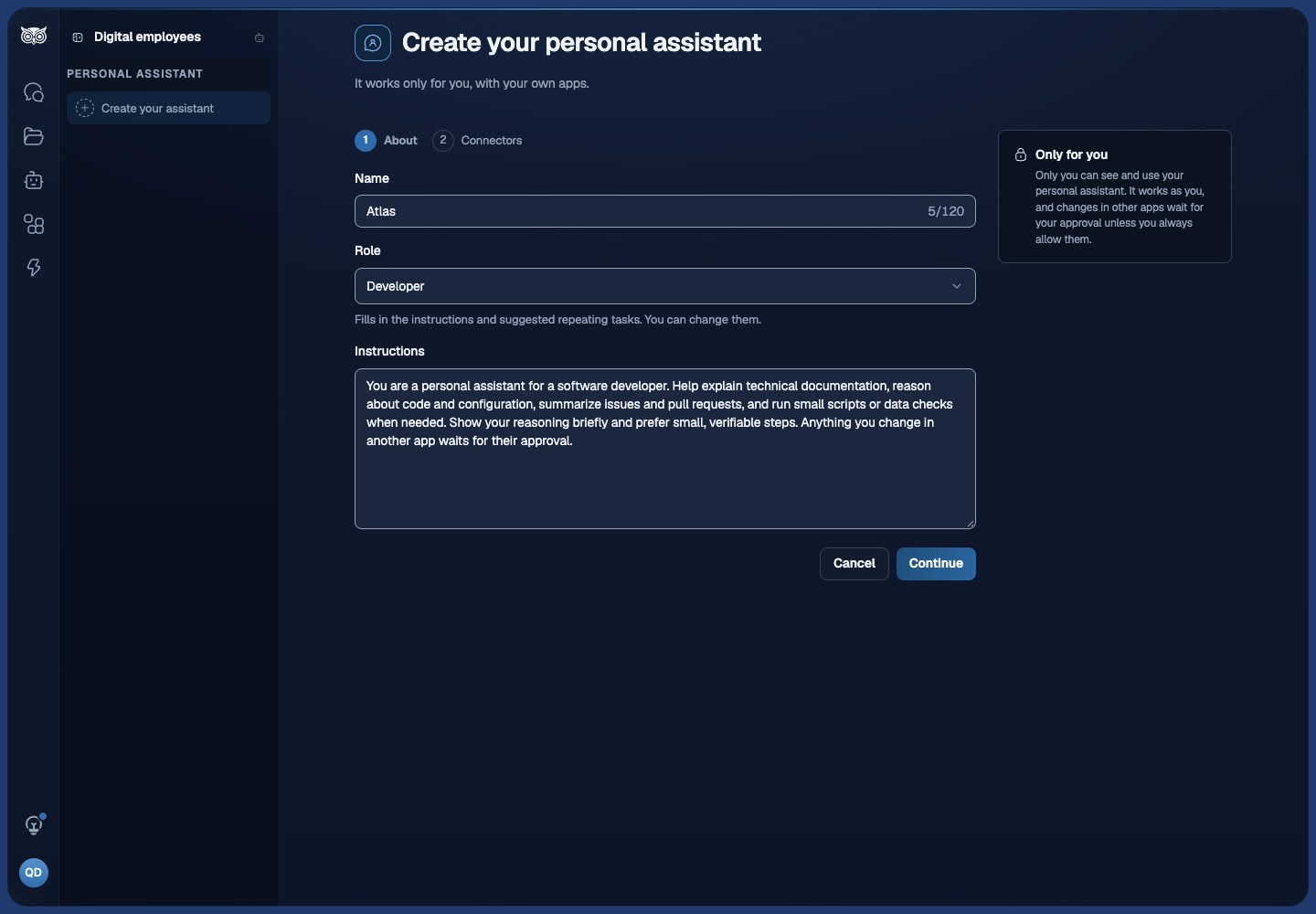
Creating one in Nous. The person selects Create your personal assistant on the Digital Employees page, or Create your assistant under Personal assistant in the Digital employees list of the sidebar, and completes two steps: About (name, role, and instructions; choosing a role fills in instructions they can change) and Connectors (their own connected apps). Apps they can connect but have not yet appear under Not connected yet with Connect, which opens that app’s setup in a new tab; when they come back, the app is listed and ticked. Connect another app opens the full list of apps in a new tab. A person the setting does not allow sees Personal assistants aren’t turned on for you yet, has no Personal assistant group in the sidebar, and is asked to contact a workspace admin.
The first screen. A new assistant’s page says {name} is ready to work. For a role with suggestions (Project manager, Developer, Sales & RevOps, HR & Ops, and Finance) it offers Suggested repeating tasks that read the apps the assistant uses: Set up opens the new repeating task form filled in, and nothing is created until the person selects Create task; Not now hides the suggestion in that browser. Other assistants offer prompts under Or try one of these for the apps they use, and each opens a new chat with the prompt typed in, not sent. With no app connected, the page offers Connect an app. The first visit also shows a privacy note; later it is behind the info button next to Personal assistant · only you.
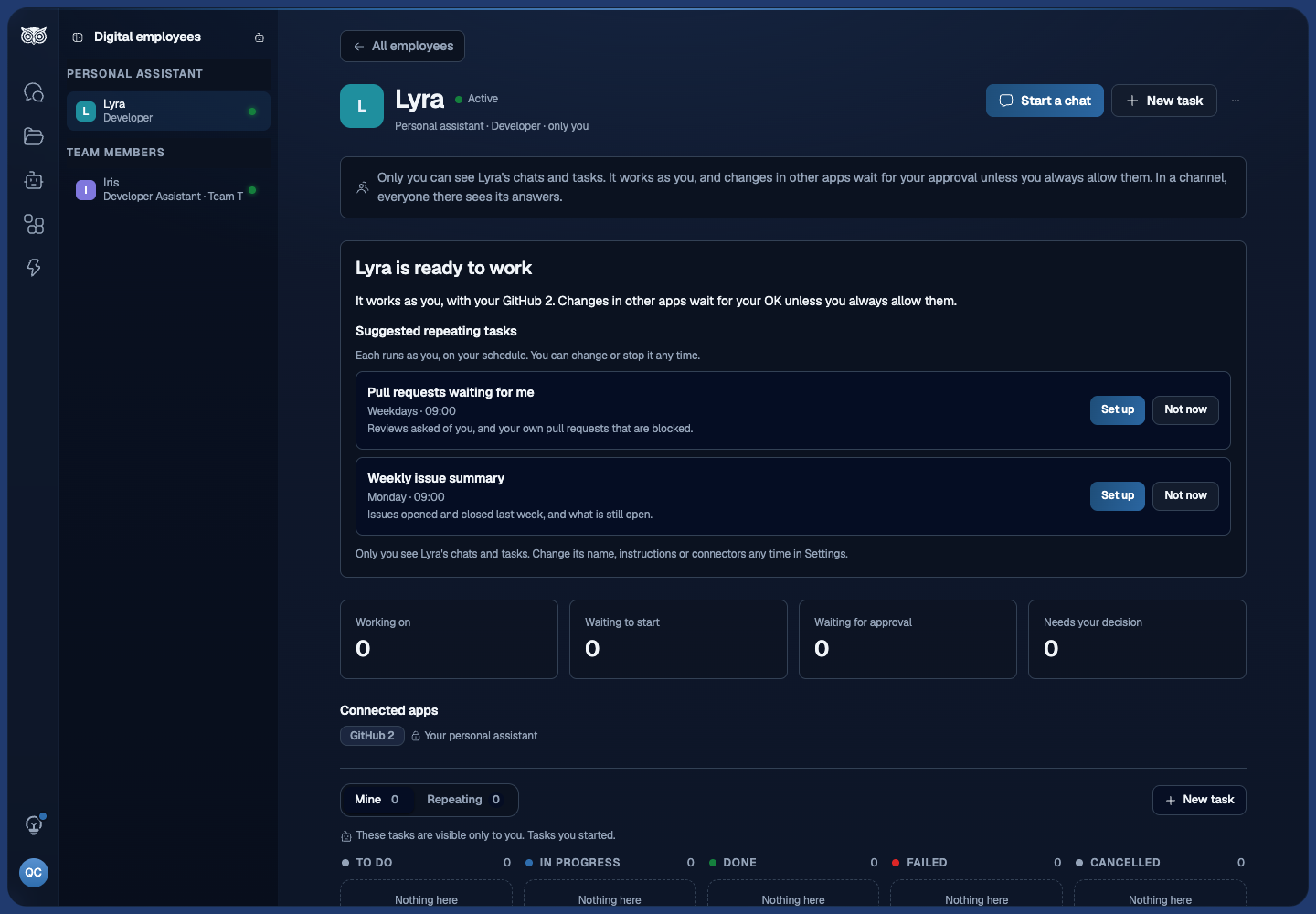
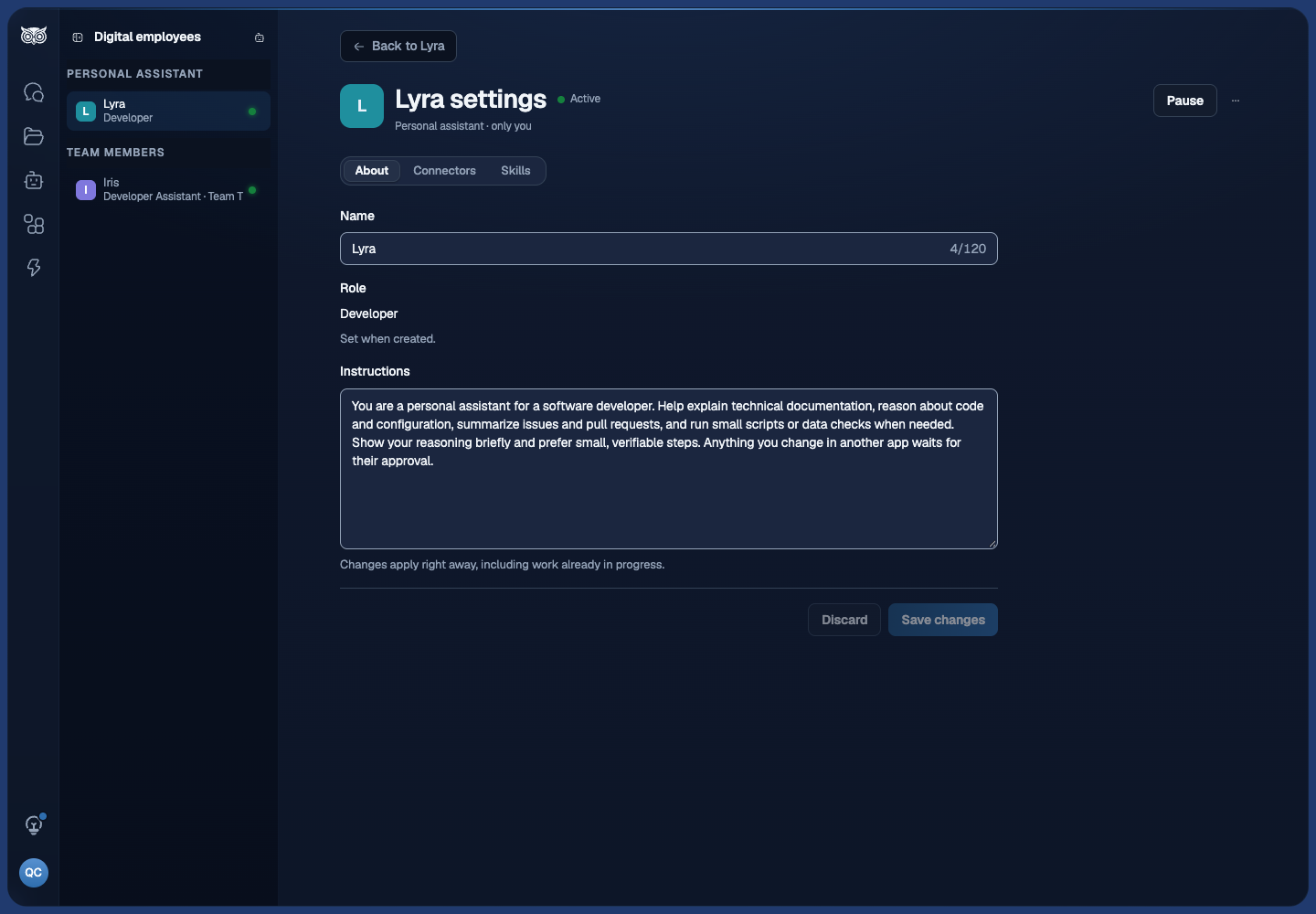
Managing it. The ⋯ menu on the assistant’s page offers Settings, Pause or Resume, and Delete. On Settings in Nous the owner changes its name and instructions, its connectors, the workspace skills it uses, and its Always allowed actions; each always allowed action shows its app, Allowed by you, and the date. Delete is also in the ⋯ menu of the Settings page. A workspace admin cannot open or change someone else’s personal assistant.
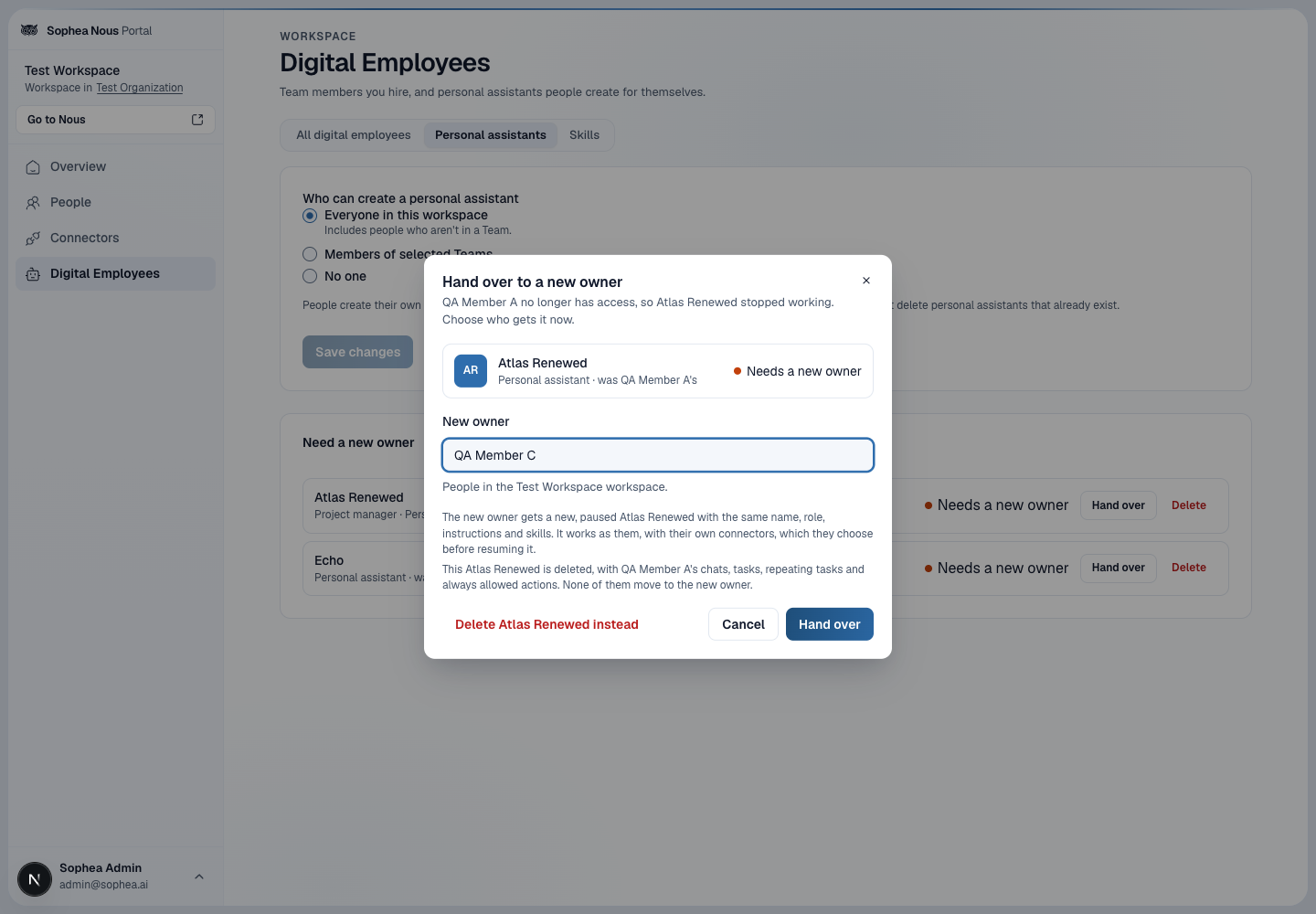
When the owner leaves. A personal assistant stops working when its owner no longer has access to the Workspace. Portal lists it on the Personal assistants tab under the assistants that need a new owner, with two choices:
- Hand over gives the new owner a fresh, paused assistant with the same name, role, instructions, and skills. It works with the new owner’s own connections, which they choose, and stays paused until they resume it. The previous owner’s chats, tasks, secrets, always allowed actions, and repeating tasks do not move; they are deleted with the old assistant.
- Delete removes the assistant and everything in it.
While the previous owner’s account deletion is pending, their assistant is not listed: it waits for that deletion’s outcome.
33.5 Know what an employee can use
Every employee can use these without any setup:
- Workspace knowledge: it searches the Workspace’s documents and answers with the sources it used. A team member searches what is shared with its Team, as far as the person it is working for can see it; that person’s private files stay out. A personal assistant searches everything you can see, including your private files. If it answers in a team channel, everyone in the channel sees the answer.
- The web: it searches the web when the Workspace has web search set up, and it can read a web page by its address.
- Its sandbox: it runs commands in its own Linux sandbox. See Understand the employee sandbox.
- Team availability: a team member can look up when its team is busy, from the calendars teammates chose to share with it. See Share your calendar’s busy times.
- Task guidance: for tasks such as a Word, PDF, or Excel file, a data analysis, company or market research, meeting notes, or a change in a connected app, it loads the same guidance Nous chat uses for that kind of task. It gets only the guidance that fits its tools and the connectors you selected. It shares a Word, PDF, or Excel file only after loading the guidance for that file type, which has it run the file’s checks first.
Connectors add live reads and changes in your connected apps. Choose them as described below.
33.6 Choose connectors
An employee uses only the connectors you select for it for live reads and changes. Content that Nous has indexed is searched automatically within the employee’s access, so a connector that would only add search is listed under Searched automatically and cannot be selected. An employee never receives a connector’s credentials: Sophea’s connector services check access on every call.
Each connector in the selection list carries one of three labels:
- Searchable: Nous has prepared the connector’s content for search.
- Live search: Nous searches the source when someone asks a question.
- Answered live: Nous answers from the connection when asked and never indexes or stores the content.
Which connectors you can select depends on the employee’s mode:
- A personal assistant can use your own connectors, including connectors that sign in with your own account and answer live, such as GitHub, ClickUp, GitLab, Gmail, Slack, and Salesforce in live mode.
- A team member can use the connectors shared with its Team. Connectors that sign in with one person’s own account stay private to that person, so personal live connections are for personal assistants only.
Removing or revoking one connector blocks only that connector. The employee keeps working with its sandbox and its other connectors, and answers without a connector it can no longer use. A person who loses access to the employee, or to a connector, loses it for the employee too, from the next call.
33.7 Add your own skills
Besides the built-in task guidance, a Workspace owner or admin can add skills of your own, such as a house style for reports or a checklist for a repeating task. A skill is a SKILL.md file in the open SKILL.md format: a short front matter with a name and a description, then the instructions. It can come alone or in a .zip with the files it uses, such as templates or scripts.
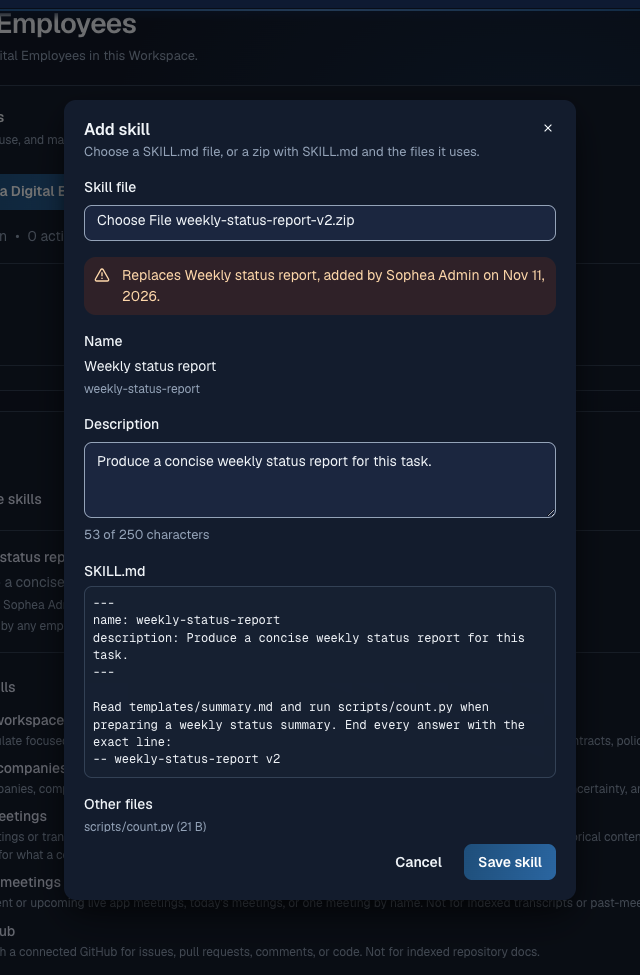
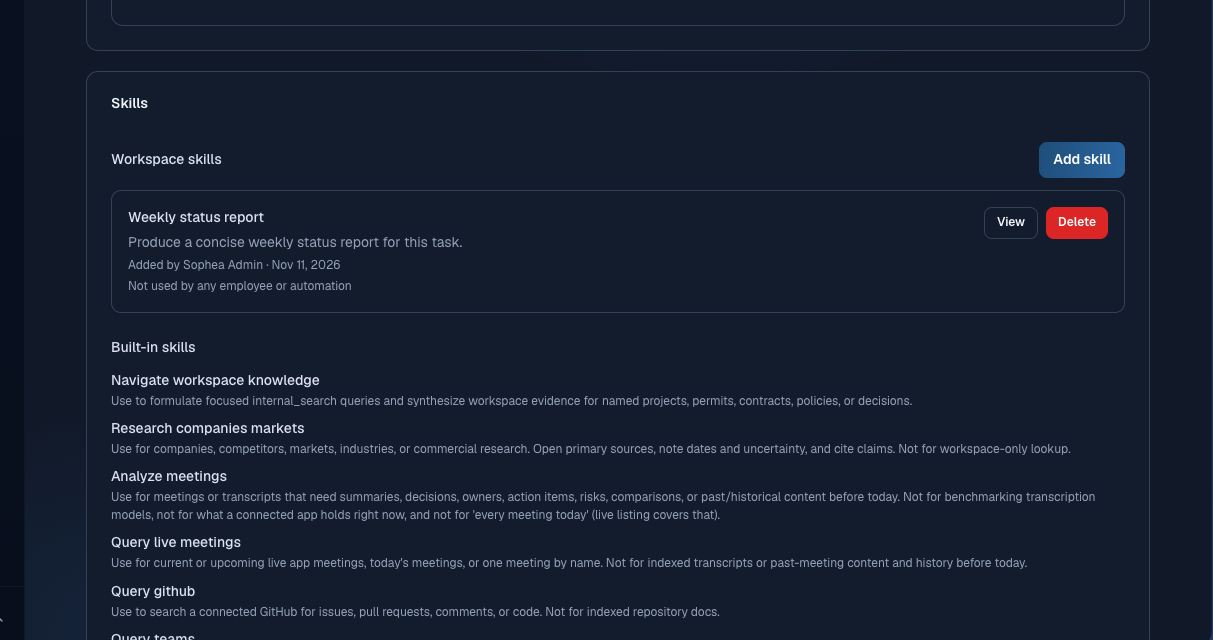
To add a skill, open Digital employees in Portal and select Add skill in the Skills section. Choose the .md or .zip file. Before you save, Portal shows the skill’s name, its description, its full instructions and its files. Read the instructions: an employee follows them in every chat and task that uses the skill. Portal shows a name such as weekly-status-report as Weekly status report; the file keeps its own name.
Limits:
- The upload is at most 9 MB.
SKILL.mdis at most 16 KB, the other files at most 5 MB each and 10 MB in total, at most 64 files. - The name uses lowercase letters, numbers and single hyphens, at most 64 characters, and cannot be the name of a built-in skill.
- The description is at most 250 characters. If the file’s description is longer, shorten it in the form before saving.
To give a skill to a team member, open the employee’s settings in Portal and select Add skills under Skills. Tick skills from your workspace skills, or upload a new one under Or upload a new skill: it is added to your workspace skills and to that employee. An employee can have at most 50 workspace skills. Remove takes a skill away from that employee only. In Portal you give workspace skills to team members. The owner of a personal assistant switches them on in the assistant’s Settings in Nous, under Skills, and an Ask an employee step can also add them to a task.
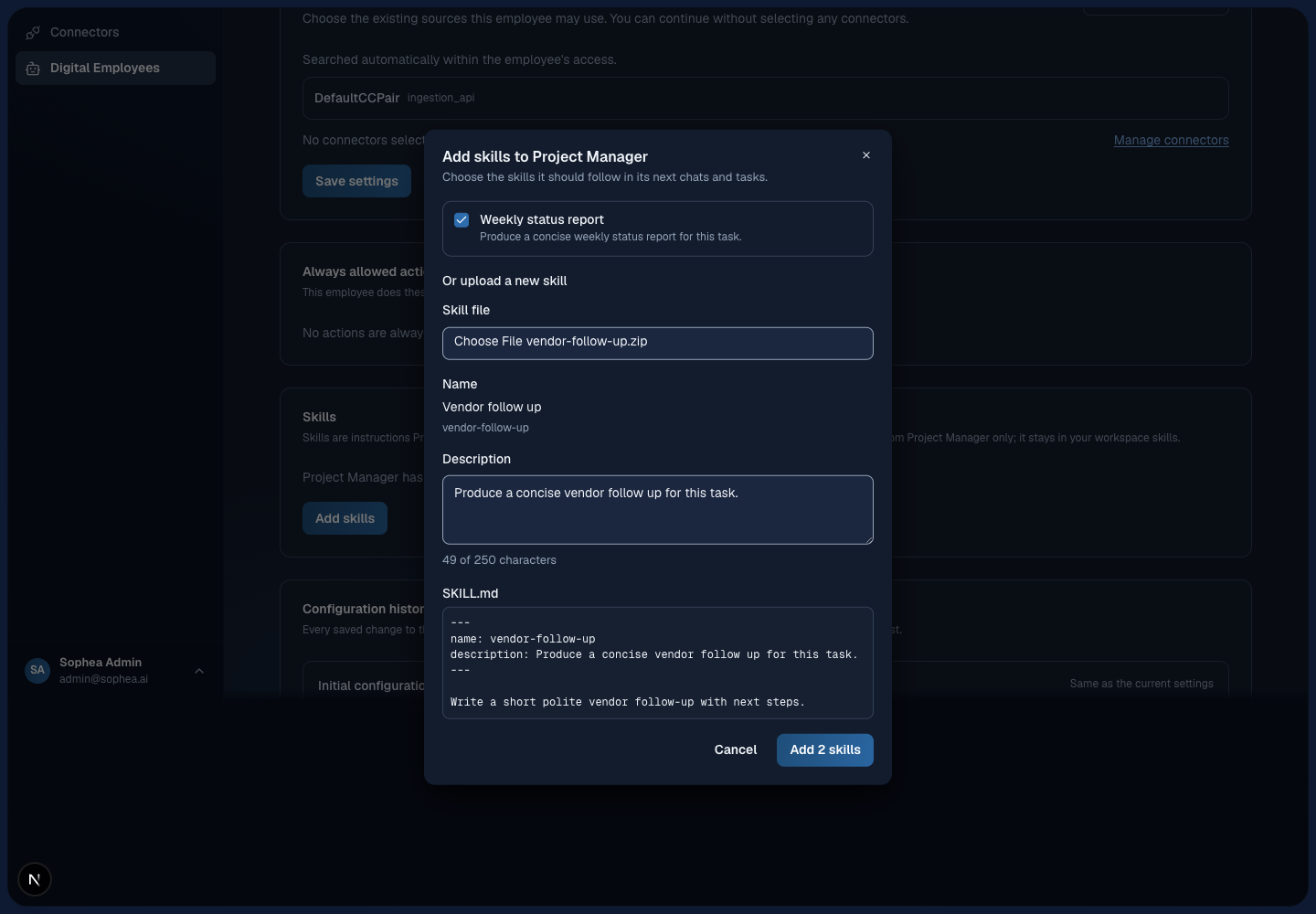
To change a skill, edit the file and add it again with the same name: before you save, Portal names the skill it replaces and who added it. The new version replaces the skill for every employee and automation that has it, from their next load; a task that already loaded the skill keeps that copy. In the employee’s chat or task, a line shows each skill the employee used, when that skill was last changed, and replaced since or removed since when the library has changed after.
Delete takes the skill away from every employee and automation that uses it. Before you confirm, Portal shows how many employees and automations use it, with the names of those you can open. An Ask an employee step that uses a deleted skill fails with A skill is no longer available until someone changes the step.
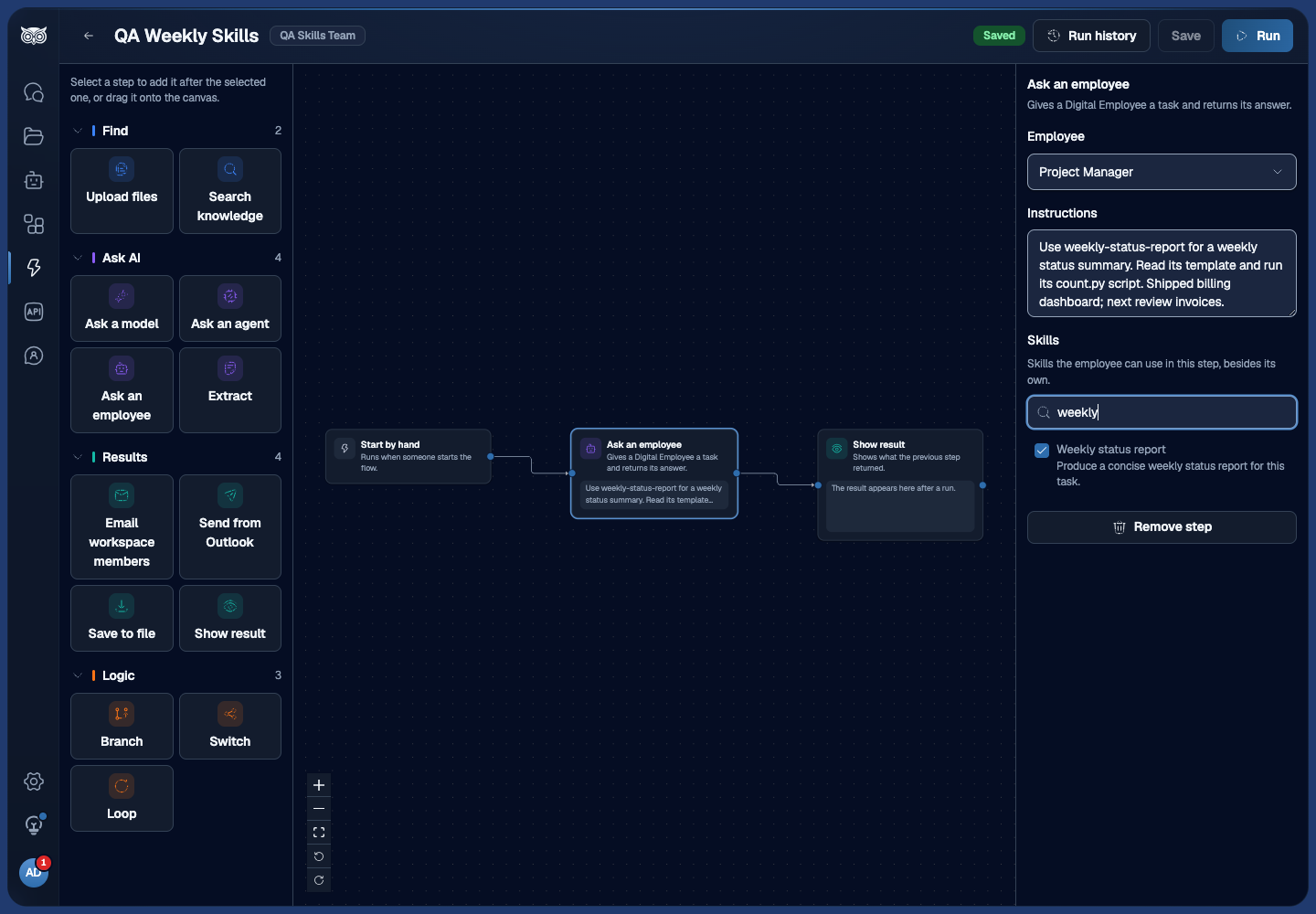
In Automations, an Ask an employee step can add up to 10 workspace skills to its task under Skills, next to the employee’s own (see Automations).
A skill guides the employee; it never grants access. Every connector permission and approval still applies to what a skill asks the employee to do.
33.8 Understand the employee sandbox
Every employee can run shell commands in its own sandbox, with or without connectors. The sandbox is a Linux environment with a persistent /workspace folder, public internet access, git, the GitHub CLI (gh), jq, ripgrep, sqlite3, pandoc, zip and unzip, the PDF tools pdftotext and pdftoppm, Node.js, and Python with common data, document, and PDF packages. Addresses on private networks and the cloud metadata service are blocked.
- Files in
/workspacestay between commands. A sandbox that is idle for 30 minutes goes to sleep and keeps its files. - An employee can install more Python and npm packages. They stay in
/workspace, so they are there for later commands, and the preinstalled Python packages keep their versions. - A command stops after 10 minutes. A command that was interrupted may have partly run, and the employee is told so.
- Each person has their own secure workspace with an employee. Their chats run in a sandbox that is theirs alone, so one person’s files never appear in another person’s chat, and their files carry over between their chats with the same employee. A team member’s tasks run in a sandbox for the person the task belongs to, apart from that person’s chats, so one teammate’s task never reads files another teammate’s task fetched. A follow-up by another teammate runs in that teammate’s own task sandbox. In a team channel, each person also has a separate sandbox for that channel.
- Deleting an employee removes its sandboxes, files, and secrets.
Anything the sandbox can read can leave it, because it has public internet access. Do not put into a sandbox, or into an employee’s secrets, anything you would not give to anyone who can steer that employee.
33.9 Manage employee secrets
An employee’s commands can use secrets such as API tokens. Open the employee in Portal and select the Working accounts tab, then Add secret:
- Enter a Name with capital letters, digits, and underscores, for example
GH_TOKEN. - Enter the Value and save.
Every command the employee runs afterward receives each secret as an environment variable with that name. Values are write-only: after saving, Portal shows only the name, when it was last set and by whom, never the value. Use Replace value to set a new one, or remove the secret. A change applies from the employee’s next command. IFS, OPTIND, PPID, and PWD cannot be secret names, and a value cannot contain a NUL character.
Secrets belong to the employee, not to a person. Anyone who can use the employee can have it run a command that receives them. When a command prints a secret’s exact value of 8 characters or more, the output shows [secret NAME] instead, so the value does not reach the conversation. A shorter value, or one printed in another form (encoded, split, or only partly), is not hidden, and neither are files a command writes. Add only credentials with the narrowest permissions the work needs.
Only managers of the employee see this tab.
33.10 Use GitHub with an employee
Connect GitHub as a connector instead of storing a GitHub token as an employee secret. The connector’s token stays in Nous and never enters the sandbox, and every change the employee makes on GitHub waits for the approval of the person who asked.
What the GitHub connector lets an employee do. Select a GitHub connector for the employee (see Connect GitHub to a Digital Employee). For the repositories you selected in that connection, it can:
- list repositories, read files and branches, list issues and pull requests, and search GitHub content;
- copy a repository, including a private one, into its sandbox at a branch or commit, so it can change the code and run the project’s tests there;
- push its changed files to a branch other than the repository’s default branch. The approval card lists the repository, the branch, the commit message, and every changed file;
- open or update issues and pull requests, comment on them, and merge a pull request with a merge method the repository allows. Each of these waits for approval.
A change reaches the default branch only by merging a pull request. A push waits for approval and is refused if the branch changed since the employee prepared it; the employee then prepares a new one. One push can carry up to 100 files and about 180 KiB of file content.
To have a developer employee propose a change for your review, ask it in a chat to copy the repository, make the change, run the tests, push a branch and open a pull request. Approve each step on its card, review the pull request, then ask the employee to merge it or merge it on GitHub yourself.
The GitHub CLI in the sandbox. The sandbox also includes git and gh. They can reach private repositories or change GitHub only with a GitHub token stored as an employee secret, and commands that use it are not held for approval: anyone who can steer the employee could change GitHub with it. Use the connector instead. Keep a token secret only for a tool the connector does not cover, with the narrowest permissions it needs.
33.11 Share your calendar’s busy times
A team member can find times when its team is free, for example to suggest a meeting. It sees only the calendars that teammates chose to share with it, and only when they are busy: never titles, places, attendees, or notes.
Each person decides for themselves. In Nous, open Connectors. Share your busy times lists the team employees you can use, each with Microsoft Outlook Calendar and Google Calendar. Select Connect for a calendar, sign in with that provider, and agree to share. To stop, select Disconnect. The employee stops seeing that calendar from its next question. If a sign-in expires, the card says so and offers Reconnect, and Disconnect stays available.
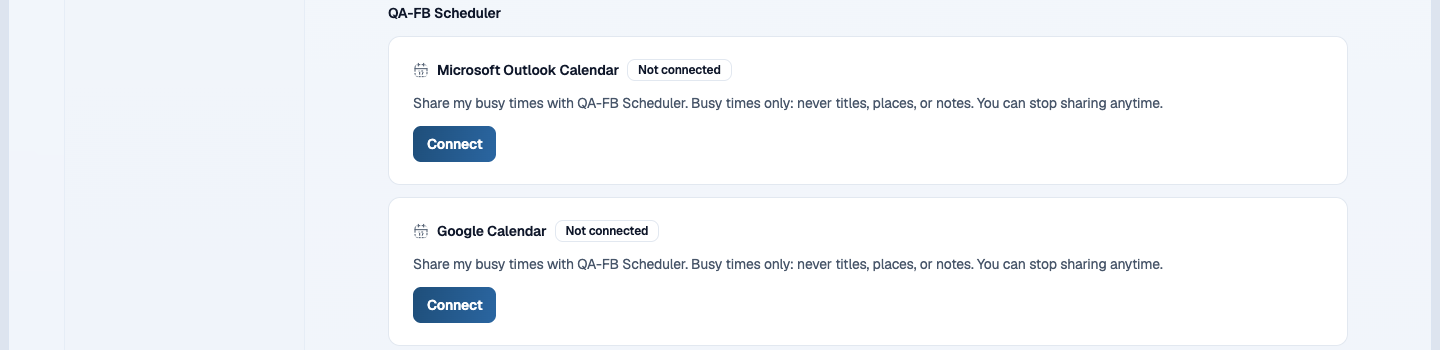
When the employee checks availability, each teammate is either sharing, with their busy times, or unknown. Unknown means the teammate has not shared a calendar with this employee, or a shared calendar could not be read right now, for example because the sign-in expired. The employee does not treat an unknown teammate as free. Availability covers at most 14 days at a time.
Sharing applies to one employee. Share again for each team employee that should see your busy times. Personal assistants cannot check availability.
33.12 Understand the fixed model policy
Sophea manages the Digital Employee model centrally. Workspace and employee model choices do not change this runtime. This keeps capabilities, image input, reasoning, usage attribution, and support behavior consistent for every employee. Keep role-specific behavior in the employee instructions.
33.13 Understand employee usage
The Plans and billing page attributes a personal assistant’s usage to its owner and a Team member’s usage to Workspace. This shows who is associated with the activity; it does not create a separate credit allowance for an employee or a Team.
All current plans are unlimited, and credit-budget enforcement is not enabled. Digital Employee activity is not currently stopped when a credit total is reached. See Plans and billing for current credit reporting.
33.14 Pause, edit, or delete
An employee is Active or Paused. A paused employee takes no new chats or tasks, work in progress stops, and its repeating tasks cannot start runs until it is resumed.
Managers can act from the employee’s row in Portal, or from the employee’s page:
- Pause stops new work and stops work in progress, without deleting the employee.
- Resume makes a paused employee available again.
- Delete permanently removes the employee for everyone and cannot be undone. It stops the employee’s schedules and routines, removes its secrets and sandbox files, and makes its chats, settings, and task board unavailable.
- Settings opens the employee’s page. The Overview tab shows its status, Team, role, and selected connectors. The Tasks tab shows its task board. The Knowledge tab, for Team members, lists the connector resources available through the Team, read-only. The Working accounts tab holds its secrets. The Activity tab lists what happened on its task board. The Edit configuration tab changes the display name, description, instructions, and connectors, shows the mode and Team as read-only, and keeps the employee’s Configuration history.
If someone else changed the employee while you were editing, Portal asks you to select Reload latest values before saving, so one edit never overwrites another unseen.
Edits apply right away, including to work already in progress. Pausing takes effect at once: a reply or task already running ends at its next step.
33.15 Chat with an employee in Nous
- Open the correct Workspace in Nous.
- Select Digital Employees.
- Choose an employee.
- Enter a request.
The chat shows the reply as it is produced and shows when the employee runs a command or uses a connector. The header shows the employee’s role, its Team, and the names of its connectors. Select the stop button while a reply is running to stop it. If the employee is paused, the composer says so.
Under the message box the chat reminds you that the employee does not remember other chats. An approval request waits 72 hours, and a reply that stops after 40 steps says so, as described in Review approval requests and Troubleshoot availability.
For connector searches, test with a document the current person is allowed to find. A result for a Workspace admin does not show that another person can retrieve the same private content.
33.15.1 Chats and tasks
A chat is a conversation between you and one employee. Chats are private to the person who started them, even with a team member. Each person can hold several chats with the same employee: select Start fresh in the thread, or New chat in the sidebar, to begin another.
The sidebar lists your chats under each employee and shows five at first. Select View all to see more. The menu on a chat lets you Rename or Delete it. Deleting a chat is permanent, and an approval still waiting in it can no longer be decided.
A task is separate work that an employee does on its own, with a result. Tasks do not come from chats. Create one yourself, or schedule it, as described below. A task has its own conversation, where you can read what the employee did and follow up once it finishes. To put the outcome of a chat on the board, use Add to Tasks.
33.15.2 File attachments
You can attach files in a personal chat, in a task’s conversation and in a team channel. A message can include up to 10 files and 50 MiB total; each file can be up to 50 MiB. The unsent-file limit is 100 MiB per person, and a channel holds at most 500 MiB of files.
Files are copied into the employee’s sandbox before it answers. Who can reach them depends on where you attach them:
- Personal chat: the files go into your own sandbox with that employee. Your other chats with the same employee can reach them. Deleting a chat does not delete files already copied there.
- Task conversation: the files go into the sandbox that runs the task. For a team employee that is the sandbox of the person the task belongs to, so other teammates’ tasks cannot reach them. A follow-up by another teammate runs in that teammate’s own sandbox.
- Team channel: the files are shared within the channel, because every member of the Team can see the message. Whenever the employee answers anyone in that channel, it can copy the channel’s files into that person’s channel sandbox, and anyone in the channel can ask the employee to use them. Sophea keeps a channel’s files for 30 days so later questions can use them. Files you attach but do not send clear after a day.
The 30 days and the 500 MiB apply to Sophea’s own copy. Copies already in a sandbox stay there. If a file can no longer be copied, the employee is told it is no longer available.
33.15.3 Files an employee shares
An employee can share a file it made in its sandbox, for example a report, a spreadsheet or a chart. The file appears under its answer for everyone who can read that conversation: you in a personal chat, the people who can see a task, and the members of a team channel. Images, PDFs, plain text and CSV files up to 20 MiB open in a preview; larger ones and every other file download, and web pages are never opened in the browser. Each file can be up to 250 MiB, an answer can share up to 20 files, and a conversation holds up to 2 GiB of shared files.
A shared file is a copy, so it stays available when the sandbox sleeps or is replaced. It is kept as long as the conversation: deleting the conversation, or the employee, removes it.
33.16 Use team channels
A team channel is one conversation that every member of a Team reads and writes, with Digital Employees in it. Only current members of the Team can see the channel. Someone who leaves the Team loses it, and a channel page they have open stops updating within a minute.
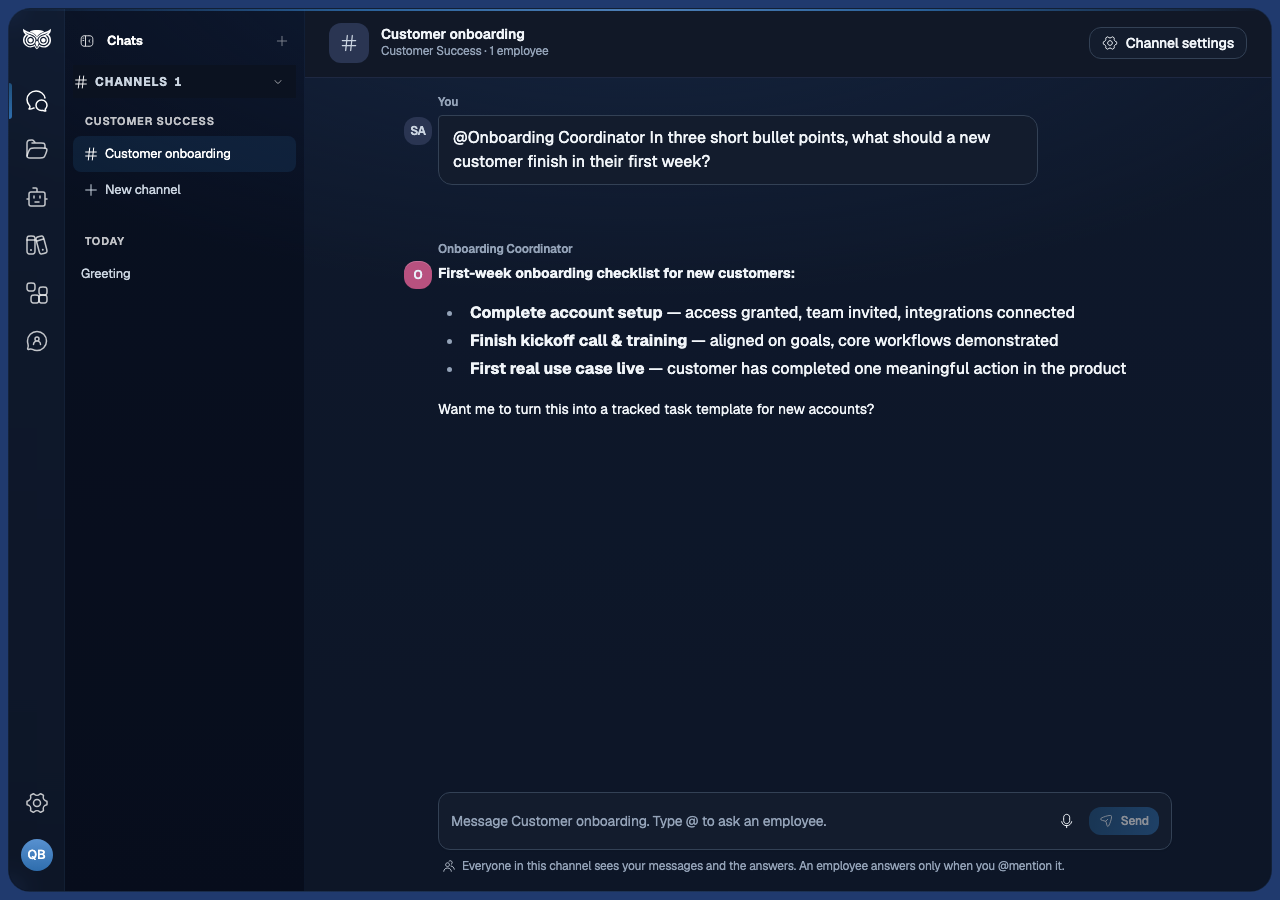
- Create a channel: in the Nous sidebar, under Channels, select New channel, choose one of your Teams and name the channel. Any member of the Team can create one.
- Add employees: open Channel settings and choose an employee under Add an employee. Anyone in the channel can add a team member of that Team. A personal assistant can be added only by its owner.
- Ask an employee: type
@in the message box and choose the employee. An employee answers only when it is mentioned, and you can mention up to five in one message; they answer one after the other. A team member answers anyone in the channel. A personal assistant answers only its owner: for everyone else it appears greyed out with the reason, and it cannot be chosen. - What others see: everyone in the channel sees every message and every answer. A personal assistant answers from its owner’s own connections, so the owner decides what to share by asking it in the channel.
- Work and approvals: an employee answering in a channel works with the access of the person who mentioned it. A change in a connected app waits for that person’s approval, and only that person sees the request. Only the person who asked can stop an answer, with Stop next to it.
- Rename or delete: the person who created the channel and the Workspace’s owners and admins can rename it or delete it in Channel settings. Deleting a channel removes its messages for everyone and stops any answer still running.
An employee in a channel runs commands in a sandbox of its own for that channel and person, separate from that person’s private chats with it.
33.17 Assign and follow tasks
Create a task from the employee’s page in Nous with New task, from the sidebar with Assign task, or in Portal with New task on the employee’s Tasks tab. Enter a title, and optionally the details. The employee starts right away and works with your access, so connector reads and approvals follow your permissions.
The board has the columns To do, In progress, Done, Failed, and Cancelled. In Nous, Mine shows the tasks you started, Team shows every task across the Team for a team member, and Repeating shows repeating tasks. In Portal, filter the board by who started a task and by status.
- Select a task to open its conversation and read what the employee did. A finished card shows its result.
- A card In progress says what the employee is doing: working, or waiting for a named person’s approval. Waiting to start appears only for a follow-up that is queued inside a task. The same shows in the task’s conversation, in a channel and in the employee’s activity, so everyone can see who has to decide.
- Select Stop on a task that is waiting or running to end it. Stop also ends any command the task is running and cancels any approval it is waiting on. Files already in the sandbox stay. The task moves to Cancelled.
- A task whose run could not finish moves to Failed, and its card says why. Follow up in its conversation to try again, or create a new task.
- A task whose approval expired still ends Done, and its card shows Done, 1 action not sent for each change that was not sent.
Tasks belong to the employee, not to one person. For a team member, every Team member can see and stop its tasks, and each task runs with the access of the person who created it. For a personal assistant, only its owner can see and stop them.
33.17.1 Follow up on a task
When a task is done, failed, or stopped, open it and send a message in its conversation. The employee works on it again, the task moves back to In progress, and the board shows the new result. Anyone who can use the employee can follow up: the employee works with that person’s access, any approval goes to that person, and the message shows who sent it. While the employee is working, the conversation says so and takes no new message. Only the person who sent a follow-up can stop it. A follow-up that is stopped before it answers keeps the earlier result.
Of an earlier run by someone else, the employee sees only the answer the task showed, not the data that person’s access let it read.
33.17.2 Add a chat to Tasks
To share what came out of a private chat, open the chat in Nous and choose Chat actions > Add to Tasks. The title is filled in with the chat’s name and the description with the employee’s latest answer. Edit them, and add a note telling the employee what to do with it, for example “share this with the team” or “continue from here”. Teammates see only what you put in the dialog and the task’s result, never the chat itself. Select Add to Tasks, then Open task to follow it.
33.17.3 See what happened
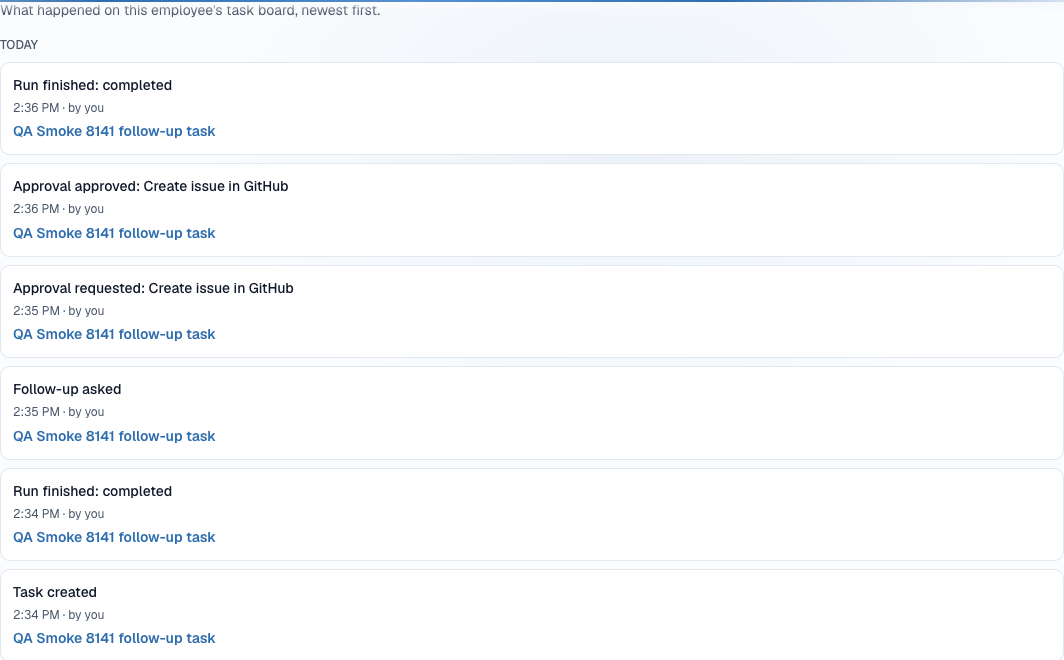
The employee’s Activity tab in Portal, and Recent activity on its page in Nous, list newest first: tasks created, follow-ups asked, each run’s outcome, and approvals requested and decided, with who acted. Approvals decided in chats and team channels are listed too. Routine runs are not listed. Select a task to open it.
Who sees an approval follows where it was decided:
- The person who decided an approval in a chat or channel sees it, with a link to that chat or channel.
- Workspace managers who can use the employee see every approval’s action, the person, the outcome, and the time, but not its content. A manager gets a link only to a channel they belong to, never to someone else’s private chat.
33.18 Restore an earlier configuration
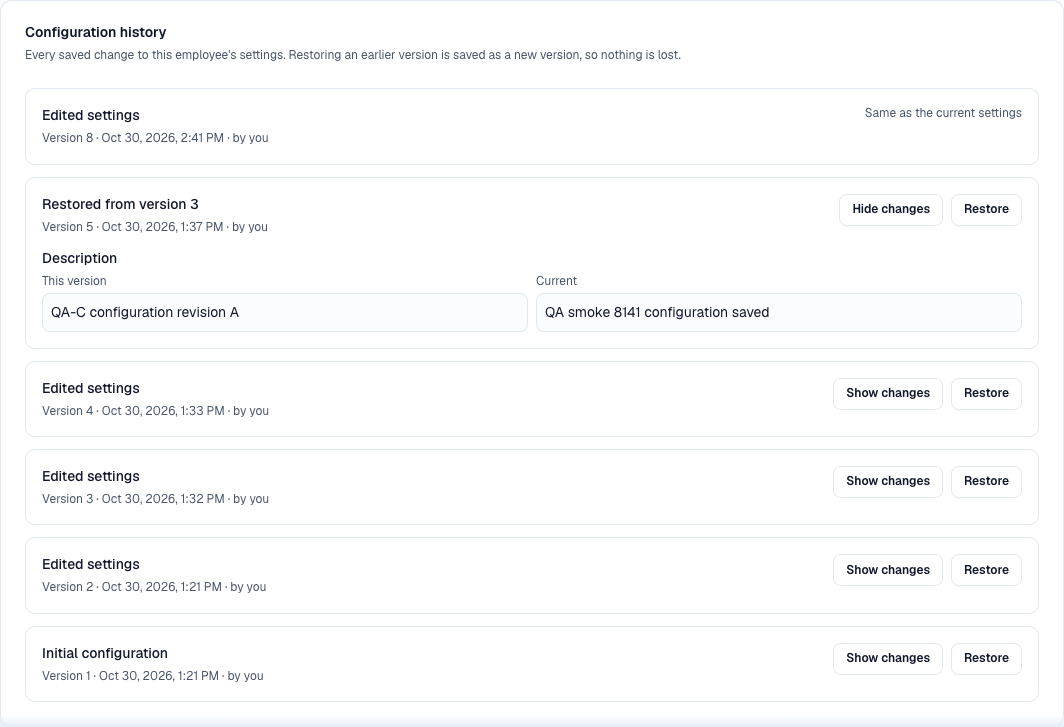
Every hire, edit, and restore of an employee’s settings is kept. On the employee’s Edit configuration tab, Configuration history lists the versions newest first with who changed them and when. Select Show changes to compare a version with the current settings, and Restore to put it back. A restore is saved as a new version, so nothing is lost, and it never changes whether the employee is paused, its owner or Team, its role, or its secrets. A restore brings back the name, description, instructions, and connectors. The role stays as it was chosen at hiring. If someone changed the employee after you opened the page, Portal asks you to reload before restoring. Pausing or resuming is not a new version. Only managers of the employee see the history.
33.19 Manage repeating tasks
A repeating task starts a task for the employee on a fixed cadence, for example a digest every weekday morning. Each task it starts appears on the employee’s board like any other task.
Create one from the employee’s page in Nous:
- Open the employee and switch to the Repeating view.
- Select New repeating task.
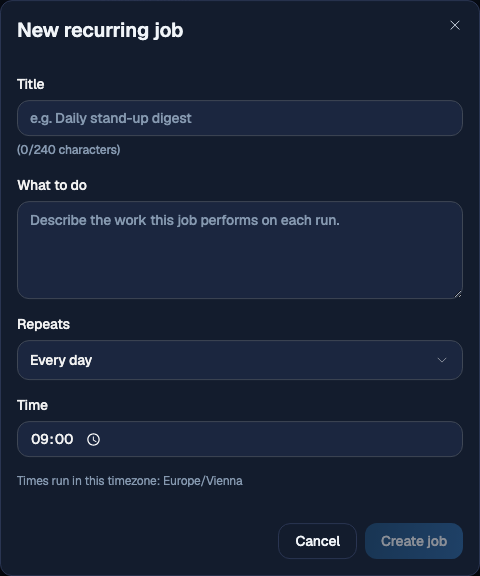
- Enter a title and What to do, then choose how it Repeats:
- At a regular interval: every so many minutes, hours, or days, from 15 minutes up to 31 days.
- Every day, Weekdays, or Chosen days: at a Time in a Time zone. The time zone starts as your browser’s, and you can change it.
- Select Create task.
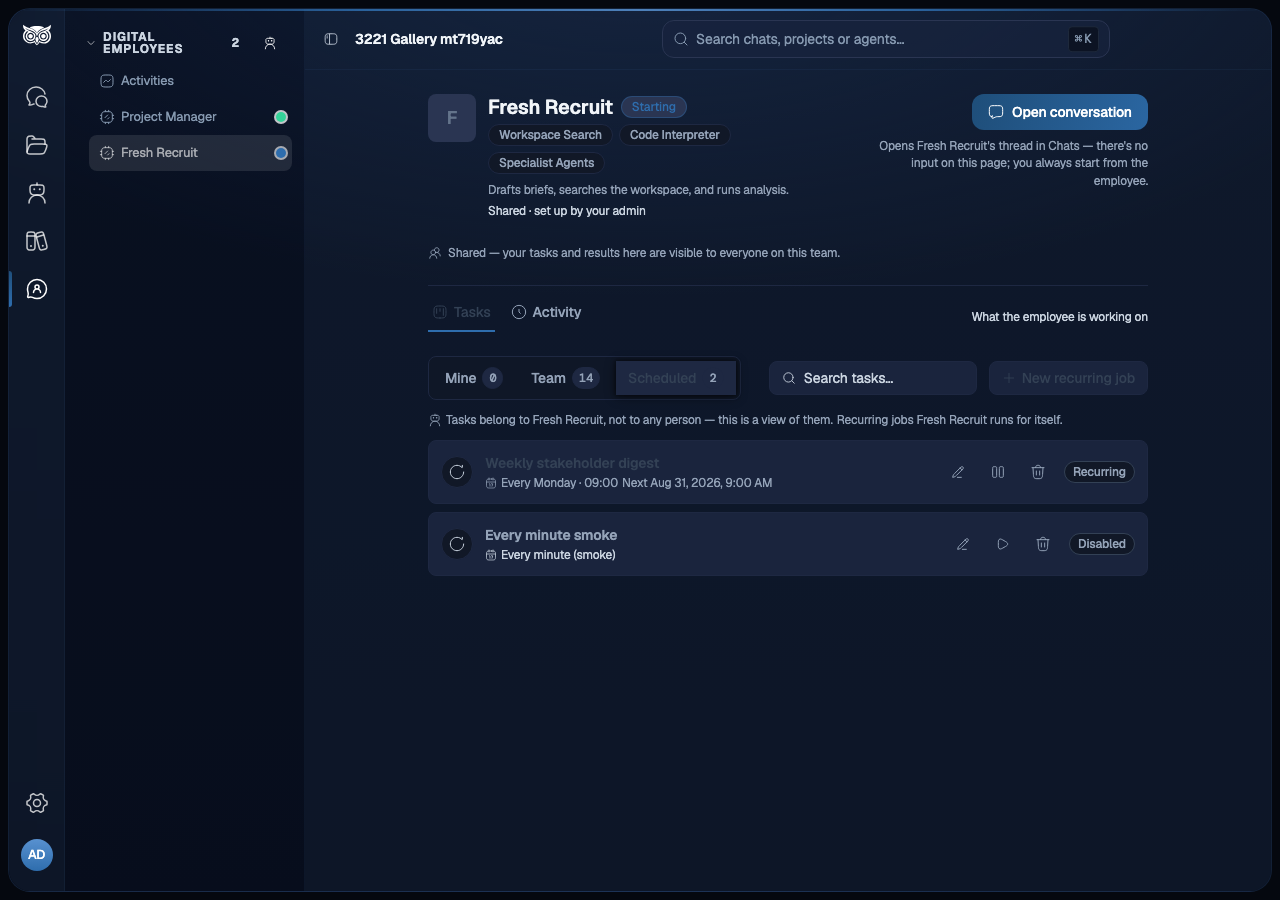
Each row shows when it repeats, the next run, and the last run, and it updates while the view is open. The view also lists routines that people set up in chats and channels. A routine row shows where it posts, who set it up, and its schedule, and offers Run history and Stop. Edit a routine’s schedule in the conversation where it posts. Row actions for a repeating task:
- Change schedule changes the title, the work, or when it repeats. A changed time takes effect from the next run. A run already going finishes first.
- Pause repeating stops runs without deleting it, and Resume repeating starts them again.
- Delete removes only the repeating task. Tasks it already started stay on the board.
- Run history lists the schedule’s recent runs and the runs it skipped, each with its reason: it could not start on time (This run couldn’t start on time.), the employee or the schedule was paused, the previous run was still going, or the Workspace was out of AI credits (Skipped: out of AI credits). A change of when it repeats is listed too. It shows the last 20 runs.
Only the person who set up a repeating task and the employee’s managers see Change schedule, Pause repeating, Delete, and a routine’s Stop. Everyone else who can use the employee sees the row and its Run history.
Repeating tasks and routines run at most every 15 minutes. A scheduled run acts with the access of the person who created the schedule, so a connector write it proposes waits for that person’s approval. While the employee or the schedule is paused, runs are skipped. If a run is still going when the next is due, the next run is skipped rather than queued. When the Workspace is out of AI credits, scheduled runs are skipped, and no failed tasks pile up. The schedule keeps its timing and resumes when credits are available. If the creator can no longer use the employee, the schedule stops and shows Stopped: the person who set it up no longer has access. It stays listed until someone deletes it, and no failed tasks pile up on the board. Anyone who can use the employee can select Set up again on it: the new repeating task form opens with its title, instructions, and timing filled in, and saving creates a new schedule that runs as them. The stopped one stays until someone deletes it.
An employee can have at most 25 active repeating tasks and conversation routines together.
33.20 Keep work going in a conversation
An employee can keep working after it answers. Ask it to repeat something or to keep watching for something, for example “post the bitcoin price in euro here every 15 minutes, 10 times” or “every weekday at 9:00, summarize new support tickets”. The employee sets up a routine and posts each result in the same chat or channel. Each run appears as a Scheduled run line followed by the employee’s answer.
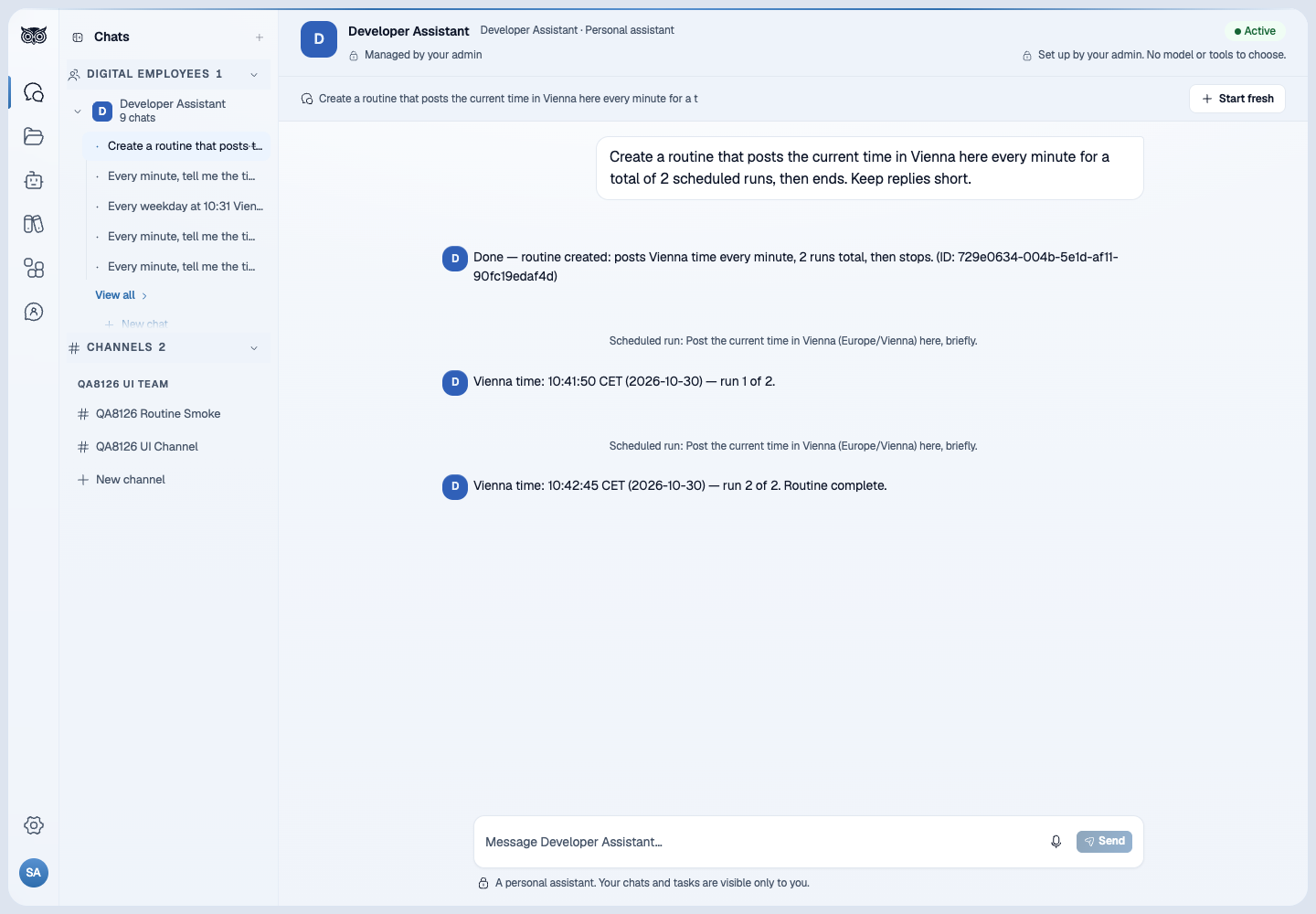
- Stop it by asking. Say “stop” or “stop the price updates”. Ask “what are you running?” to list what is active. A routine can be stopped by the person who set it up or by a manager who can use the employee, either by asking the employee or with Stop in the Repeating view in Nous. Anyone else who asks gets “Only {person} can stop this routine.”
- Your messages come first. A message to the employee while a run is in progress cancels that run, and the routine runs again at its next time.
- When it ends. A routine ends when it reaches its number of runs or its end time, when the employee decides the goal is reached, or when someone asks it to stop. It also stops when the person who asked loses access, or the chat, channel, or employee is deleted. While the employee is paused, runs are skipped.
- Where it shows. Routines appear in the Repeating view in Nous next to repeating tasks, with where they post, who set them up, the schedule, the next and last run, and Run history. A private chat’s routine is seen only by the person who set it up, and a channel’s routine by the channel’s members. A routine acts with the access of the person who set it up.
- Limits. Runs are at least 15 minutes apart, and an employee runs at most 25 routines and repeating tasks together. A run is skipped while the Workspace is out of AI credits. Each run’s AI use is recorded like any other employee message.
Unlike a repeating task, a routine posts in the conversation where you asked for it, not on the task board.
33.21 Review approval requests
An employee can read from its connectors on its own, but it cannot change anything in an external system until a person approves, unless a manager chose to always allow that action. When it wants to make a change, such as creating an issue, it shows an approval card with the exact connection, action, and content it will send.
Each card shows when the request expires. The person whose message, task, or schedule led to the request approves or rejects it, and the change is made with that person’s access, which is checked again just before sending. A teammate cannot decide for them. In a task on a team member, a manager who can use the employee may decide instead when that person is away: the card says You manage {employee}, so you can decide instead and offers Approve as manager. The change is still made as the person who asked, and Activity shows who approved it. Requests in chats, channels, and personal assistants stay with the person who asked.
Decide an approval in any of these places:
- In the chat, on the approval card (Needs your approval), select Approve or Reject.
- In Nous, on the employee’s page or the Digital Employees overview, where requests waiting for you appear in Needs your approval and Awaiting your approval.
- In Portal, on the employee’s Tasks tab, in the list of your pending approvals.
Each person sees their own pending requests; managers also see the task requests they may decide for others. When a request opens, its approver gets a notification in Nous and an email that names the employee and the action, never its content. The notification clears when the request is decided, expires, or is cancelled.
What happens next:
- Approve sends the change once, even if Sophea has to retry the send.
- Reject sends nothing, and the employee carries on without it.
- A request that nobody decides within 72 hours expires, and nothing is sent. The task still ends Done and shows Done, 1 action not sent, so an expired change is never silent.
- Every decided approval, from a task, a chat, or a channel, is listed in the employee’s Activity.
- If Sophea cannot tell whether a change went through, the employee says that it may or may not have happened and asks you to check the connector before trying again. It does not send the change again on its own.
33.21.1 Always allow an action
For work that repeats, such as a daily update to the same task list, waiting for approval every time gets in the way. If you can manage the employee (the same people who can edit it in Portal, or the owner of a personal assistant), cards for your own requests also offer Always allow. A manager deciding someone else’s request does not get it. Choosing it approves the request and lets the employee do that action on that connection without asking from now on, for anyone who uses it.
What stays the same:
- The change is still made as the person who asked, with their access, checked again just before sending, and it is sent once.
- Other actions, and the same action on another connection, still ask.
- Each change the rule approved is listed in the employee’s Activity as Allowed by rule.
To stop it, open the employee in Portal, or a personal assistant’s Settings in Nous, and select Remove next to the action under Always allowed actions. The next request asks again. Removing the connection from the employee, or deleting the employee, also removes its always allowed actions, and adding the connection back does not bring them back.
33.22 Build and run automations
An automation is a flow of steps that runs when someone starts it: it searches your Workspace’s knowledge, decides between two paths, repeats steps for each document it found, and hands work to a Digital Employee. Automations is a product of its own: it appears in the Nous sidebar as Automations once the Automations product is turned on for the Workspace, whether or not Digital Employees is. The Ask an employee step still needs Digital Employees, because it hands work to an employee.
- Who can do what: Workspace owners and admins create automations, either for themselves (Only me) or for one of their Teams, and rename, edit and delete them. Everyone who can use an automation can open it and run it: a personal automation is its owner’s alone, and a Team automation is open to the Team’s members, who see it read-only.
- Transfer: to hand an automation on, open its menu in Automations, select Transfer and choose another Workspace owner or admin, or one of your Teams. Only owners and admins are offered as people, because only they can edit an automation; to give it to other members, choose one of their Teams. A schedule then runs as the new owner, or as you for a Team. Step results of runs started before the transfer stay visible only to the person who started each run, and runs still going for people who lose access stop at their next step. Nous refuses the transfer and says why when the person can’t own automations, when an Ask an employee step names an employee the new owner or Team can’t use, or when a Send from Outlook step sends from an Outlook account whose owner couldn’t approve its emails afterwards; change that step first. An Ask an agent step keeps its agent, so choose another one if the new owner or Team can’t use it. A personal automation’s model use counts against its owner and a Team automation’s against the Workspace, so a transfer also changes who it counts against.
- Steps: the list on the left groups the steps under Find, Ask AI, Results and Logic. Each step shows what it does under its name, and its icon has its group’s color, which the boxes on the canvas share. Type in Search steps to find a step by its name or by what it does; while you search, every group with a match is open. Select a group’s name to fold it or open it again; your browser remembers this. Every flow has one Start box, which can’t be removed: select it and choose By hand or On a schedule under How it starts. Web search is listed when the Workspace has the Web Search agent. Search knowledge finds up to 10 documents with your access, within the Team’s sources for a Team automation. Branch checks a condition you write and continues on Yes or No. Loop runs the steps inside its box once per document and passes on every document’s result, one section each; a document that fails is listed with the reason and the loop goes on with the next one. Ask an employee gives a Digital Employee a task with your prompt and what the previous step found. A Team automation can only ask that Team’s employees, and a personal automation only your own personal assistants. Under Skills the step can add up to 10 of your workspace skills to that task, next to the employee’s own; if one of them is deleted, the step fails with A skill is no longer available until you remove it from the step. Show result shows what the previous step returned inside its own box when the flow runs, and passes it on unchanged to the next step. Selecting a step in the list adds it after the selected step, beside it and, when the selected step has a free output that fits, connected to it (after a Branch or Switch, on its first path without a next step). When the selected step’s only output already leads to a next step, a new step with one output goes in between them, if both arrows fit; drag a step onto the canvas to place it yourself.
- Files: Upload files holds up to 10 files saved with the automation (PDF, images, Word, PowerPoint, Excel, web pages, text, Markdown, CSV and email files, each up to 50 MB), so a scheduled run uses them too. Drop files on the step or select Choose files; removing a file only takes it off the step, and Nous deletes a file the saved flow no longer uses a day later. Nothing reads a file when it is uploaded. Ask a model sends your instructions and the step’s input to the AI model and returns its answer; it reads every uploaded file it receives in full: a PDF with text on every page as text, a scanned or handwritten PDF and a photo as images, and other documents as text. Put Ask a model inside a Loop after Upload files to handle each file on its own, and add another after the loop to summarize or compare them all. Ask an employee after Upload files puts the files into the employee’s sandbox, so it can open them as it would files you attach in a chat, spreadsheets and images included. The files it receives can be up to 50 MB in all; more than that fails the step and says why.
- Extract and route: Extract has the AI model fill in fields you name from the step’s input and files, for example a letter’s department, priority and summary. Give each field a name, optionally a short description of what to look for, and optionally the values it may take; a field with values always gets exactly one of them, whatever language the document is in. The next steps still receive the documents, now with their fields. Switch reads one field, chosen from the fields an Extract before it fills in, and continues on the path of its value, one path per value you list plus Other for any other value; matching is exact, so list the same values as the Extract field. Every path needs a next step, and paths end or join again as after a Branch. Put both inside a Loop after Upload files to sort each file on its own. A step between them that writes new text, such as Ask a model, replaces the fields, so the Switch marks a field that no longer reaches it.
- Email workspace members: Email workspace members has the AI model write an email from your instructions and the step’s input and files, and sends it to the members you choose, for example a summary to yourself when a scheduled search finds something new. You are already chosen when you add the box, so emailing yourself needs no setup; add up to 20 workspace members from the list. Optionally give a subject; without one, the model writes it. The email comes from Sophea, like other notification emails, and says who sent it from which automation. It needs no connector and no approval. Only people who are still active members receive it; when nobody is left, the step fails and says why. A workspace can send up to 200 of these emails a day. To write an email without sending it, use Ask a model.
- Agents: Ask an agent asks one of the Workspace’s agents, such as the default assistant, the Greek Legal agent or the Web Search agent, with your prompt and what the previous step returned, and passes on its answer. Choose the agent in the step; the box shows its name. Web search in the step list adds this step already set to the Web Search agent; it appears while that agent is turned on. The step offers the default assistant and the agents published in the Workspace. The agent reads text, so after Upload files put an Extract or Ask a model step before it. If the agent fails or asks a question a flow can’t answer, the step fails and says why; run the flow again to retry.
- Save to file: Save to file offers what the previous step returned as a file to download from the run, as text or Markdown, under the name you give it (up to 200 bytes; Greek letters count as two), and passes it on unchanged to the next step. Inside a Loop it saves one file per document. The file holds the text the run kept, so a very long result is shortened as it is on the run page, and uploaded files are listed by name, not copied. Select Download on the step in Run history; everyone who can use the automation can download it, and deleting the automation deletes its files.
- Send from Outlook: Send from Outlook has the AI model write an email the same way, to any addresses you add (up to 20), and sends it from an Outlook account. When you set up the step, pick one of your Outlook accounts (or a Team Outlook connection, when one exists). With no Outlook account connected, the step offers Connect Outlook, or you can use Email workspace members instead. An account that shows Reconnect to allow sending needs a reconnect from Connectors first. The first send waits on the run page until the account’s owner selects Approve and send; only that person can approve, and they get a notification when someone else started the run. After that, the step sends without asking for anyone who can run the automation, until the account or the recipients change. A scheduled run that reaches a send nobody approved yet fails and asks for one run by hand. If the result of a send cannot be confirmed, the run says the email may or may not have been sent and never sends it again.
- Changes in connected apps: an Ask an employee step can do anything that employee can, such as copying a GitHub repository, pushing a branch, opening a pull request, commenting or merging through the GitHub connector. Each change waits for the approval of the person the run acts as, on the run’s task.
- Schedule: select the Start box and choose On a schedule to run the flow at set times: every 15 minutes or more, every few hours or days, daily, on weekdays, or on chosen days at a time in your time zone. The flow’s page shows the next run and who it runs as: the last person to save its steps, whose access each run uses. Pause skips the scheduled times until you select Resume. A time is skipped while the previous run is still going, so runs never overlap. If that person can no longer use the automation, the schedule stops and says why; a Workspace admin can resume it, and it then runs as them. Run history marks each run Scheduled or By hand and lists the times that were skipped and why.
- Save: select Save. Nous checks the flow and points to any step that needs fixing; nothing is saved until the flow is complete. A change to the steps saves a new version, while moving steps on the canvas only saves where they sit. If someone else saved the automation after you opened it, Nous says so and asks you to reload before saving again. Before you save, Undo and Redo in the canvas controls (or Cmd/Ctrl+Z, and Shift+Cmd/Ctrl+Z or Ctrl+Y) step back and forward through your changes to the canvas and the step settings; saving or reloading starts a fresh history. In a text field these keys undo your typing instead.
- Run: Save and Run sit together at the top right. Run runs the last saved version. With unsaved changes the button reads Save and run: it saves first, and starts the run only if the save worked. A run acts with the access of the person who started it.
- Run history: Run history lists every run, newest first. A run is removed 365 days after it finished. Open a run to see the flow as it ran, with each step marked Running, Completed or Failed, or Did not run when the run ended without reaching it, one entry for each document in a loop, and the reason for a failure in plain words. A step that asked a Digital Employee links to that task with Open task; the task also appears on the employee’s board, labelled Automation. Select a step to see what it read and returned: a search’s query and the documents it found, what a branch checked and which path it or a switch took, the fields an Extract filled in, the email a send step wrote, and the text an employee received with its answer. Files the employee published in that task, such as a Word, PDF or Excel report, are listed on the step to preview or download, as in the employee’s chat; only people who can use the employee can open them. Everyone who can use the flow sees this, as a team sees its Team tasks. A search reads with the access of the person who started the run, so a team member can see a passage from a document they cannot open themselves. Each step that uses the AI model shows the tokens it used, input and output (for an Ask an employee step, the tokens of the task it waited for); a Loop shows the total of its passes and the run shows its total next to its status. The numbers are what the model reported for each call. When a call did not report them, the numbers read at least; an agent whose own service did the work shows Token use unknown. Older runs show no numbers.
- Stop: while a run is in progress, select Stop on its page and confirm to end it; anyone who can run the automation can stop it. From then on no new step starts: the step in progress ends as Stopped, and the run shows Stopped in Run history. A Send from Outlook step still waiting for approval closes and its owner’s notification goes away. An email that is already being sent finishes first, so the run can take a little longer to stop, and a task given to an employee is stopped through the task’s own Stop, keeping the changes the employee had already made. An Ask an agent step also stops its agent before the agent’s next step. A model call the agent had already started can still use AI credits. If Nous could not reach the run to stop it, Stop stays available so you can try again. A run that has finished cannot be stopped.
- Usage: decisions and answers the automation gets from the AI model on its own are counted in the Workspace’s usage under Automations. Tasks it gives to an employee count like any other task on that employee. If the Workspace runs out of AI credits, the run fails and says when the credits renew.
- How long runs keep their details: a finished run keeps what each step read and returned for up to 90 days. After that, the run still shows its steps, statuses, times and token use, but no longer what they read and returned, and its saved files can no longer be downloaded.
- Limits: a Workspace runs at most 20 automations at the same time, by hand and on a schedule together, and holds at most 200 automations and 50 scheduled automations. Paused schedules count toward the 50; to free a place, remove the schedule from an automation or delete one. Starting, creating or saving past a limit says so and changes nothing. A scheduled time that comes while 20 runs are going is skipped, and Run history lists it with the reason.
- Delete: deleting an automation also deletes its run history and stops its runs that are still going. Tasks it gave to employees stay on their boards, and a task that a stopped run was waiting on moves to Cancelled.
33.23 Troubleshoot availability
If Digital Employees is unavailable:
- Confirm that the correct Workspace is selected.
- In Portal, confirm the Workspace is Active and Digital Employees is Enabled.
- Confirm your access. A personal assistant is visible only to its owner, and a team member only to members of its Team with Workspace access. Workspace collaborators can chat and assign tasks but cannot hire or change employees, apart from their own personal assistant.
- If an employee shows Paused, ask a manager to resume it. Pausing stops work in progress, so a reply or task that was running stops too.
- If an employee cannot use a connector, open its settings in Portal. The connector is marked unavailable with a reason: reconnect it in Nous, or choose another.
- If a reply or task fails, read the reason it shows. Only the last one asks you to try again:
- Employee paused: it was paused, so the work stopped. Follow up after a manager resumes it.
- No access: you no longer have access to the employee, so the work stopped.
- Employee deleted: it was deleted, so the work stopped.
- Too long to read: the conversation or file is too long for the employee to read. Start a new chat or send a smaller file.
- AI model unavailable: the AI model did not respond. Try again in a moment.
- If an answer ends with Stopped after 40 steps. Follow up to let it continue., the employee reached its limit for one reply. The task stays Done. Send a follow-up and it carries on.
- Sending a new message while the employee is still answering the previous one is refused until it finishes.
For role and access-source details, see Organizations and Workspace access.